The Snapshot drill-down screenDie Snapshot-Detailansicht
Tap any row on the History tab to open the snapshot drill-down: a frozen-in-time view of your full financial picture on that date, with per-heading breakdowns, owner splits, and the change versus the previous snapshot.Tippe im Reiter Verlauf auf eine beliebige Zeile, um die Snapshot-Detailansicht zu öffnen: eine eingefrorene Sicht auf dein gesamtes Finanzbild zu diesem Datum — mit Aufschlüsselung pro Überschrift, Eigentümer-Splits und der Veränderung gegenüber dem vorherigen Snapshot.
Quick start
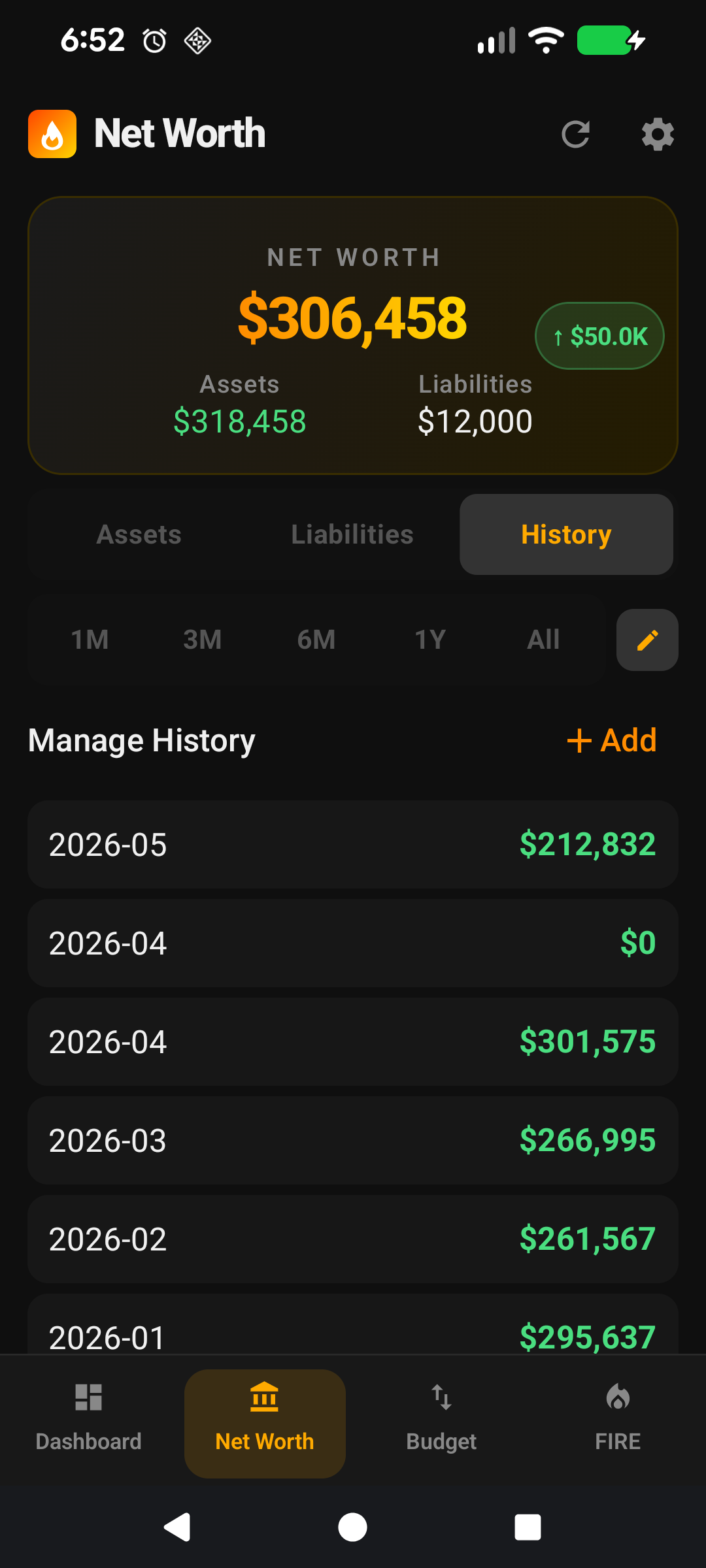
The Snapshot drill-down is the per-month detail view behind your history chart. The path in is a bit hidden — on the Net Worth screen's History tab, tap the pencil icon (Manage History) in the top-right to expose the snapshot list, then tap a row to open the detail view. You see what your finances looked like on that snapshot's date — not what they look like now.
Tap the pencil icon to switch the History tab into Manage History mode — the snapshot list appears below the chart. Each row opens the drill-down for that month.
The big number at the top is the net worth recorded on that snapshot. The chip beside it shows the change versus the previous snapshot.
Assets and Liabilities sections list every heading with its subtotal as captured at that moment.
Income & Expenses summary shows the active monthly figures the snapshot captured (so you can see how those moved over time too).
The overflow menu (⋮) in the top-right has Edit (manual entries only) and Delete.
That's all most people need. The rest of this page covers the deeper detail you can read off a snapshot, plus when editing or deleting one is a good idea.
The rest of this guide is for users who want to get more out of the screen. If you only ever read snapshots at a glance, you can stop here — everything below is optional.
Going deeper
Reading the per-heading breakdown
Inside the Assets and Liabilities sections, every heading you had at snapshot time appears with its subtotal. This is a frozen copy — if you've since renamed a heading, hidden one, or added new ones, the drill-down still shows the headings as they were on the snapshot date. Same for asset and liability values: the numbers are the prices and balances stored at the moment the snapshot was written, not today's prices.
This is intentional. A snapshot is a historical record; if it changed every time you edited an asset, your history chart would slowly drift away from the truth.
The change chip versus the previous snapshot
The chip beside the big number compares this snapshot to the one immediately before it in your history — normally the previous month. Green and up for gains, red and down for losses. If this is your earliest snapshot the chip is hidden (nothing to compare against).
Underneath, each heading subtotal carries its own small delta chip showing how that heading moved versus the previous snapshot. Useful for answering "what actually drove the change last month?" without having to flip back and forth between two screens.
Owner splits inside the drill-down
If a heading was set to split by owner at snapshot time, the drill-down preserves that layout: a sub-heading per owner with their own subtotal, then the rows belonging to them. Owner names use the labels stored on the snapshot, so renaming an owner today doesn't rewrite history.
Assets that had no owner assigned at snapshot time fall into an Unassigned group at the bottom of the heading.
Investment NW vs Total NW on the drill-down
The drill-down respects the same toggle as the rest of the app. If you're viewing Investment NW, personal-use assets that were flagged out at snapshot time stay out. If you have Track Both Net Worths enabled, you can flip the toggle while the drill-down is open and the figures swap in place — both numbers were stored on the snapshot, so nothing is recomputed.
Snapshots written before Track Both Net Worths was turned on only carry the active figure. The inactive one is shown as — with a small footnote explaining why.
Editing a snapshot
Only manual historical entries can be edited — the kind you added yourself via Net Worth → History → Add historical entry. Automatic monthly snapshots are read-only by design (they're a record of what FirePath observed at the time; rewriting them would silently corrupt your history).
For a manual entry, the overflow menu's Edit option lets you adjust the year-month and the net-worth figure(s). Saving re-merges the entry into the snapshot series and re-renders the chart.
Deleting a snapshot
Both manual entries and automatic snapshots can be deleted from the overflow menu. There's a confirmation step — once a snapshot is gone, it's gone (unless you have a Drive backup from before the deletion).
When to delete:
A bad price-fetch — very rarely, an exchange returns a stale or zero price on the morning a snapshot fires, leaving a visible spike on the chart. Delete it; FirePath will write a fresh snapshot on the next price-worker tick or month rollover.
A duplicate manual entry — if you accidentally added two entries for the same year-month.
A test snapshot — you punched in a value to see how the chart would look and want to clean up.
Don't delete an automatic snapshot just because the number looks low for the month — that's history, not a bug.
Why the drill-down doesn't let you edit individual asset values
You can't tap an asset row inside the drill-down to retroactively change its price or balance. That's deliberate: a snapshot's purpose is to faithfully record what was true at the time. If you discover an asset was wrong months ago and you want to fix the historical chart, the right tool is to delete the affected snapshots and add manual entries with corrected totals — or simply leave history alone and let new, accurate snapshots accumulate going forward.
Make it yours — Settings that affect this screen
Track Both Net Worths — Settings → Display. Turn on before you want both figures available on every future snapshot. Existing snapshots aren't backfilled.
Auto-pricing — Settings → Premium. Keeps ticker-backed prices fresh between app opens, so the snapshot fired on the 1st of each month uses recent prices rather than week-old ones.
Add historical entry — Net Worth → History → + Add historical entry. The starting point for any manual snapshot you'll later open in the drill-down.
Drive auto-backup — Settings → Premium. Daily encrypted backup of your snapshot history; the safety net for "I deleted the wrong snapshot".
Schnellstart
Die Snapshot-Detailansicht ist die Monatsansicht hinter deinem Verlaufsdiagramm. Der Weg dorthin ist etwas versteckt — öffne im Reiter Verlauf der Vermögens-Seite oben rechts das Stift-Symbol (Historie verwalten), um die Snapshot-Liste einzublenden, und tippe dann auf eine Zeile, um die Detailansicht zu öffnen. Du siehst, wie deine Finanzen am Datum dieses Snapshots aussahen — nicht wie sie heute aussehen.
Tippe auf das Stift-Symbol, um den Reiter Verlauf in den Modus Historie verwalten zu versetzen — die Snapshot-Liste erscheint unter dem Diagramm. Jede Zeile öffnet die Detailansicht für diesen Monat.
Die große Zahl oben ist das Nettovermögen, das in diesem Snapshot festgehalten wurde. Der Chip daneben zeigt die Veränderung gegenüber dem vorherigen Snapshot.
Die Bereiche Vermögenswerte und Verbindlichkeiten listen jede Überschrift mit ihrer Zwischensumme, so wie sie zu diesem Zeitpunkt erfasst wurde.
Die Zusammenfassung Einnahmen & Ausgaben zeigt die aktiven Monatswerte, die der Snapshot erfasst hat (so siehst du auch deren Entwicklung über die Zeit).
Das Überlaufmenü (⋮) oben rechts enthält Bearbeiten (nur manuelle Einträge) und Löschen.
Das genügt den meisten. Der Rest dieser Seite behandelt die tieferen Details, die du aus einem Snapshot ablesen kannst, und wann das Bearbeiten oder Löschen sinnvoll ist.
Der Rest dieser Anleitung ist für Nutzer, die mehr aus dem Bildschirm herausholen wollen. Wenn du Snapshots nur flüchtig liest, kannst du hier aufhören — alles Folgende ist optional.
Tiefer einsteigen
Die Aufschlüsselung pro Überschrift lesen
In den Bereichen Vermögenswerte und Verbindlichkeiten erscheint jede Überschrift, die du zum Snapshot-Zeitpunkt hattest, mit ihrer Zwischensumme. Das ist eine eingefrorene Kopie — wenn du seitdem eine Überschrift umbenannt, eine ausgeblendet oder neue hinzugefügt hast, zeigt die Detailansicht trotzdem die Überschriften so, wie sie am Snapshot-Datum waren. Dasselbe gilt für Vermögens- und Verbindlichkeitswerte: die Zahlen sind die Kurse und Salden, die im Moment des Snapshots gespeichert wurden, nicht die heutigen.
Das ist Absicht. Ein Snapshot ist ein historischer Datensatz; würde er sich bei jeder Bearbeitung eines Vermögenswerts ändern, würde dein Verlaufsdiagramm langsam von der Wahrheit abdriften.
Der Veränderungs-Chip gegenüber dem vorherigen Snapshot
Der Chip neben der großen Zahl vergleicht diesen Snapshot mit dem unmittelbar vorhergehenden in deinem Verlauf — normalerweise dem Vormonat. Grün und nach oben für Zuwächse, rot und nach unten für Rückgänge. Wenn dies dein frühester Snapshot ist, bleibt der Chip ausgeblendet (es gibt nichts zu vergleichen).
Darunter trägt jede Überschriften-Zwischensumme ihren eigenen kleinen Delta-Chip, der zeigt, wie sich diese Überschrift gegenüber dem vorherigen Snapshot bewegt hat. Nützlich, um die Frage "was hat die Veränderung im letzten Monat eigentlich getrieben?" zu beantworten, ohne zwischen zwei Bildschirmen hin- und herzuwechseln.
Eigentümer-Splits in der Detailansicht
War eine Überschrift zum Snapshot-Zeitpunkt auf nach Eigentümer aufteilen gesetzt, behält die Detailansicht dieses Layout: eine Unterüberschrift pro Eigentümer mit eigener Zwischensumme und darunter die zugehörigen Zeilen. Eigentümernamen verwenden die im Snapshot gespeicherten Bezeichnungen — das Umbenennen eines Eigentümers heute schreibt die Geschichte nicht um.
Vermögenswerte, denen zum Snapshot-Zeitpunkt kein Eigentümer zugewiesen war, fallen am Ende der Überschrift in eine Gruppe Nicht zugewiesen.
Investment-Vermögen vs. Gesamtvermögen in der Detailansicht
Die Detailansicht respektiert denselben Umschalter wie der Rest der App. Wenn du Investment-Vermögen ansiehst, bleiben persönlich genutzte Vermögenswerte, die zum Snapshot-Zeitpunkt ausgeschlossen waren, weiterhin draußen. Hast du Beide Nettovermögen verfolgen aktiviert, kannst du den Umschalter bei geöffneter Detailansicht umlegen und die Zahlen werden direkt ausgetauscht — beide Werte wurden im Snapshot gespeichert, es wird nichts neu berechnet.
Snapshots, die vor dem Aktivieren von Beide Nettovermögen verfolgen geschrieben wurden, enthalten nur den jeweils aktiven Wert. Der inaktive wird als — angezeigt, mit einem kleinen Hinweis, warum.
Einen Snapshot bearbeiten
Nur manuelle Verlaufseinträge können bearbeitet werden — jene, die du selbst über Vermögen → Verlauf → Verlaufseintrag hinzufügen erstellt hast. Automatische Monats-Snapshots sind bewusst schreibgeschützt (sie sind ein Protokoll dessen, was FirePath zu diesem Zeitpunkt beobachtet hat; sie umzuschreiben würde deine Geschichte stillschweigend beschädigen).
Für einen manuellen Eintrag öffnet die Option Bearbeiten im Überlaufmenü die Möglichkeit, Jahr-Monat und Nettovermögenswert(e) anzupassen. Beim Speichern wird der Eintrag wieder in die Snapshot-Reihe einsortiert und das Diagramm neu gezeichnet.
Einen Snapshot löschen
Sowohl manuelle Einträge als auch automatische Snapshots können über das Überlaufmenü gelöscht werden. Es gibt einen Bestätigungsschritt — einmal weg, ist ein Snapshot weg (es sei denn, du hast ein Drive-Backup von vor der Löschung).
Wann löschen:
Ein fehlerhafter Kursabruf — sehr selten liefert eine Börse am Morgen eines Snapshots einen veralteten oder Null-Kurs und hinterlässt eine sichtbare Spitze im Diagramm. Lösche ihn; FirePath schreibt beim nächsten Lauf des Kurs-Workers oder beim Monatswechsel einen neuen Snapshot.
Ein doppelter manueller Eintrag — wenn du versehentlich zwei Einträge für denselben Jahr-Monat angelegt hast.
Ein Test-Snapshot — du hast einen Wert eingegeben, um zu sehen, wie das Diagramm aussehen würde, und willst aufräumen.
Lösche keinen automatischen Snapshot nur deshalb, weil die Zahl für den Monat niedrig aussieht — das ist Geschichte, kein Fehler.
Warum die Detailansicht keine einzelnen Vermögenswerte bearbeiten lässt
Du kannst keine Vermögenszeile in der Detailansicht antippen, um Kurs oder Saldo nachträglich zu ändern. Das ist Absicht: Ein Snapshot soll treu festhalten, was zu diesem Zeitpunkt wahr war. Wenn du feststellst, dass ein Vermögenswert vor Monaten falsch war und du das historische Diagramm korrigieren willst, ist der richtige Weg, die betroffenen Snapshots zu löschen und manuelle Einträge mit korrigierten Summen anzulegen — oder die Geschichte einfach in Ruhe zu lassen und zukünftig neue, genaue Snapshots ansammeln zu lassen.
Mach es zu deinem — Einstellungen, die diesen Bildschirm betreffen
Beide Nettovermögen verfolgen — Einstellungen → Anzeige. Aktiviere die Option bevor du beide Werte in jedem zukünftigen Snapshot haben möchtest. Bestehende Snapshots werden nicht nachträglich gefüllt.
Auto-Kursabruf — Einstellungen → Premium. Hält Kurse von Ticker-gestützten Holdings zwischen App-Öffnungen aktuell, sodass der Snapshot am 1. jedes Monats aktuelle Kurse statt einer Woche alter verwendet.
Verlaufseintrag hinzufügen — Vermögen → Verlauf → + Verlaufseintrag hinzufügen. Der Ausgangspunkt für jeden manuellen Snapshot, den du später in der Detailansicht öffnen wirst.
Drive-Auto-Backup — Einstellungen → Premium. Tägliches verschlüsseltes Backup deiner Snapshot-Historie; das Sicherheitsnetz für "ich habe den falschen Snapshot gelöscht".