Every list in FirePath is yours to shape: headings, asset types, income/expense categories, owners, exchanges. Drag-sort, show/hide, rename, add your own — rename cascades cleanly through referencing records.Jede Liste in FirePath können Sie gestalten: Überschriften, Anlageklassen, Einnahmen-/Ausgabenkategorien, Eigentümer, Börsen. Drag-sortieren, ein-/ausblenden, umbenennen, eigene hinzufügen – Umbenennungen kaskadieren sauber durch referenzierende Einträge.
Quick start
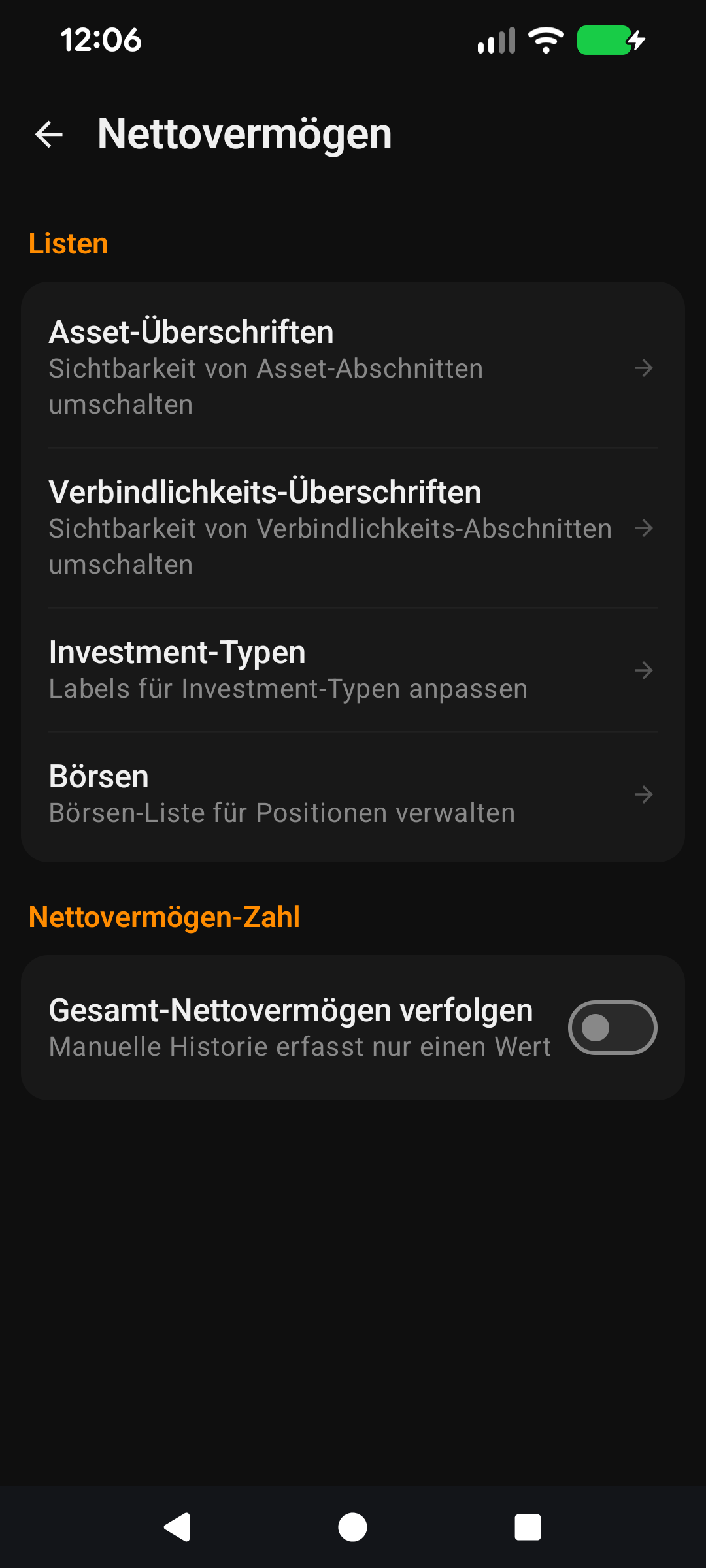
Settings → App Lists is the control panel behind every chip row and every dropdown in FirePath. If you've ever wondered "can I change this?" — almost always yes, and this is where.
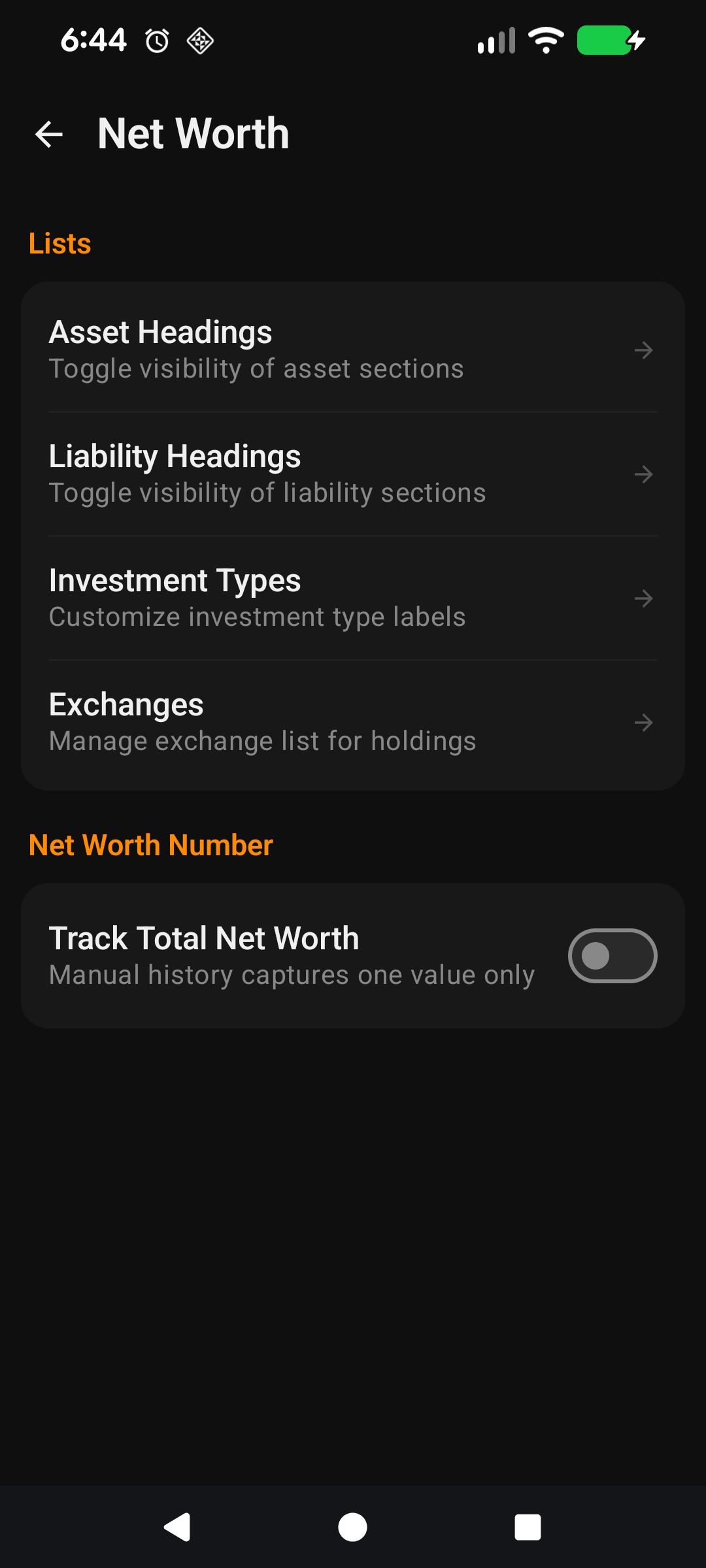
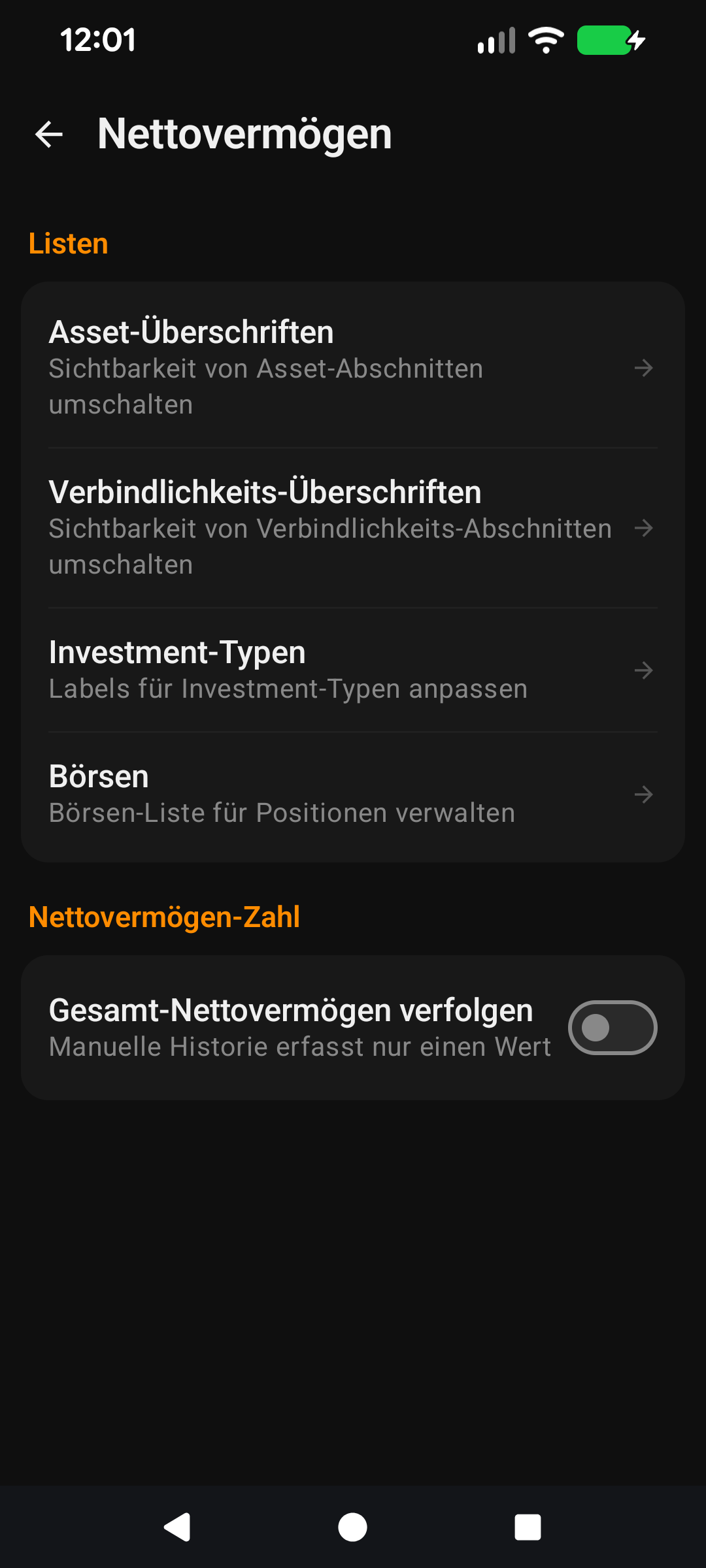
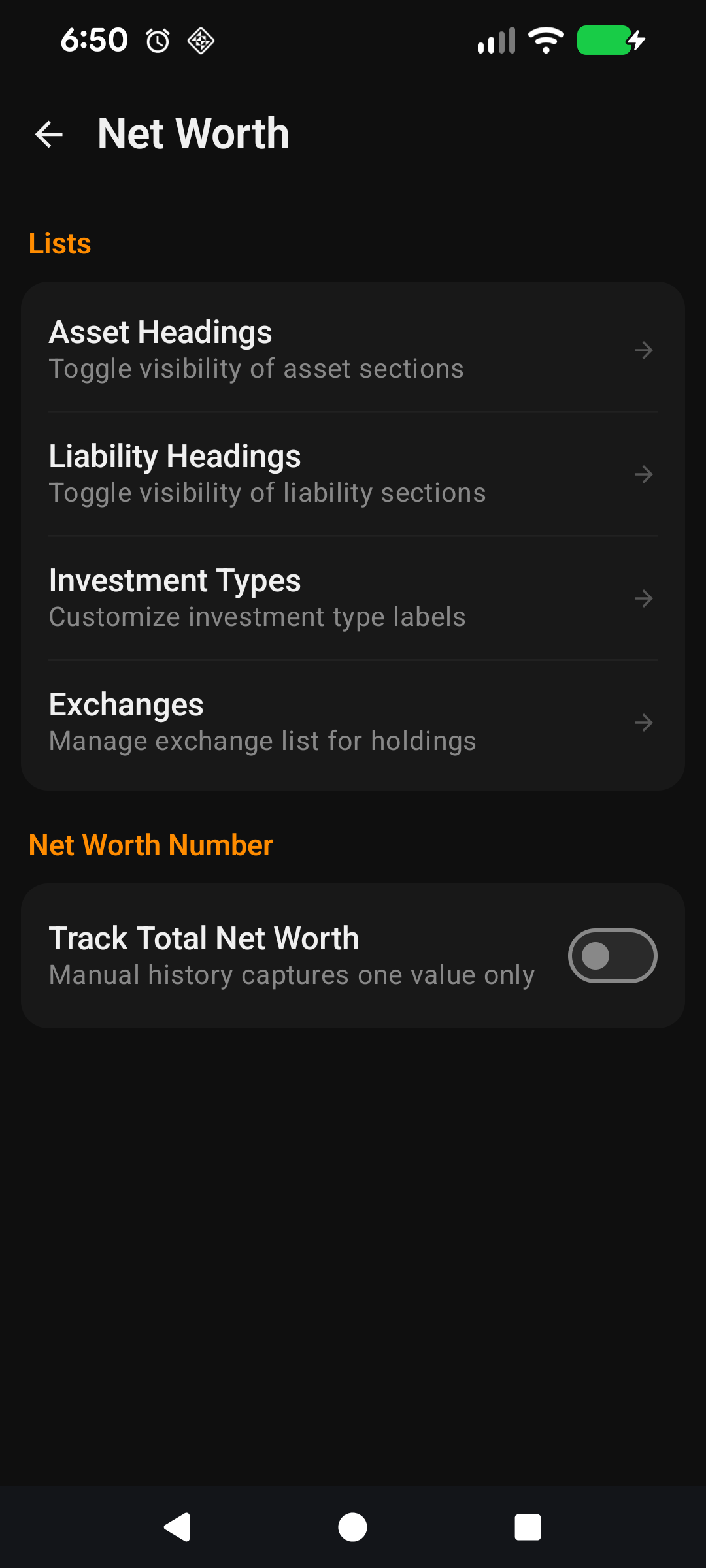
Nine lists to shape: Asset Headings, Liability Headings, Investment Types, Exchanges, Income Categories, Expense Categories, Owners, Dashboard Cards, FIRE Cards.
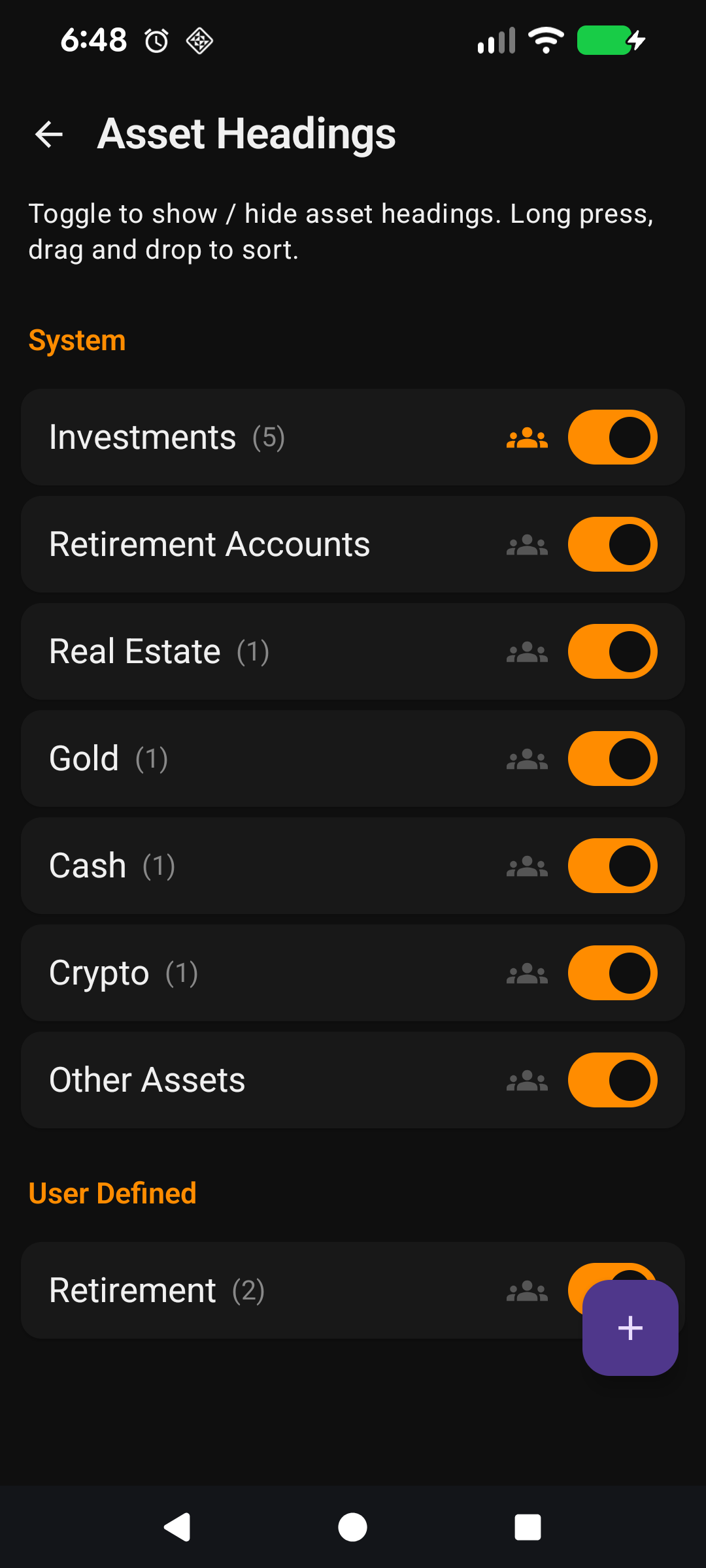
Drag to reorder — the order you see in App Lists is the order the chips appear on Add/Edit screens.
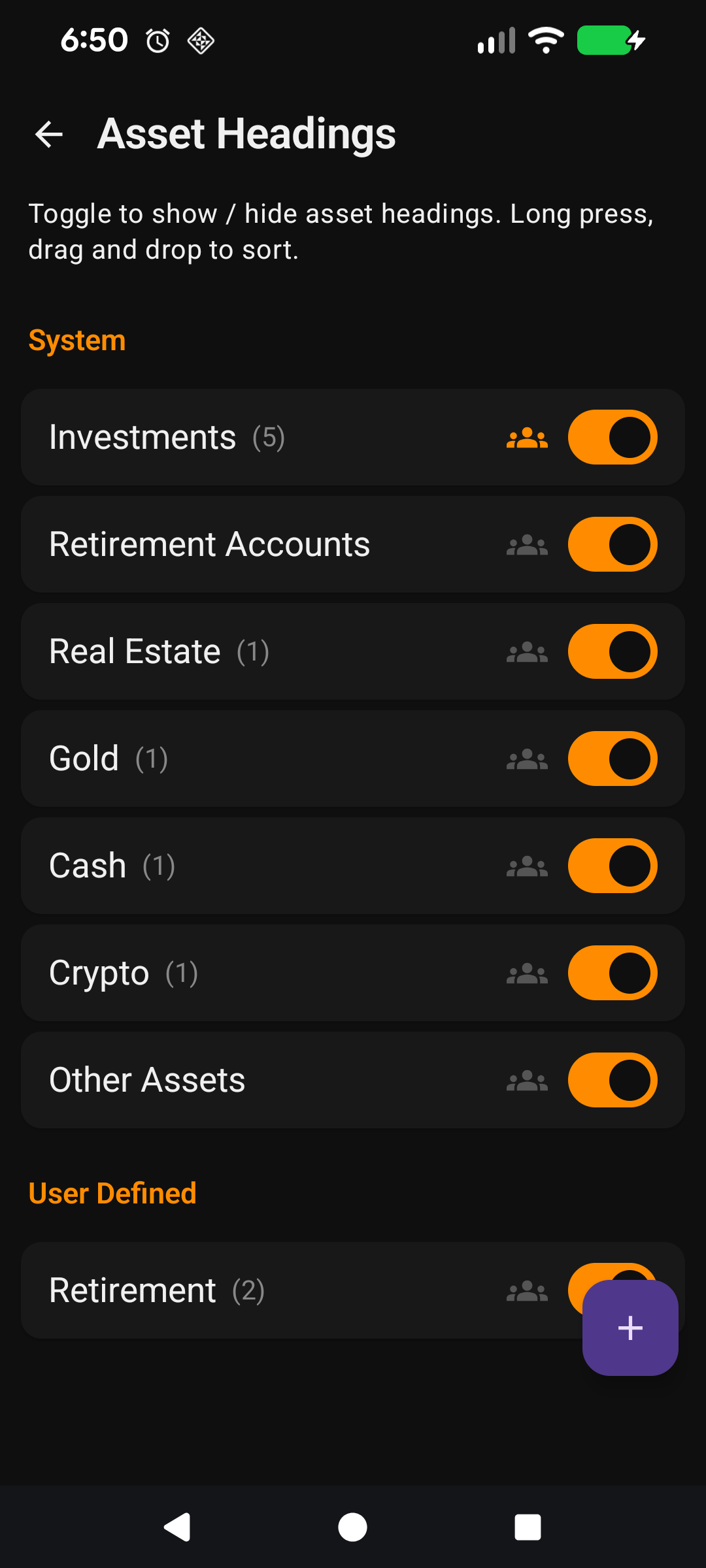
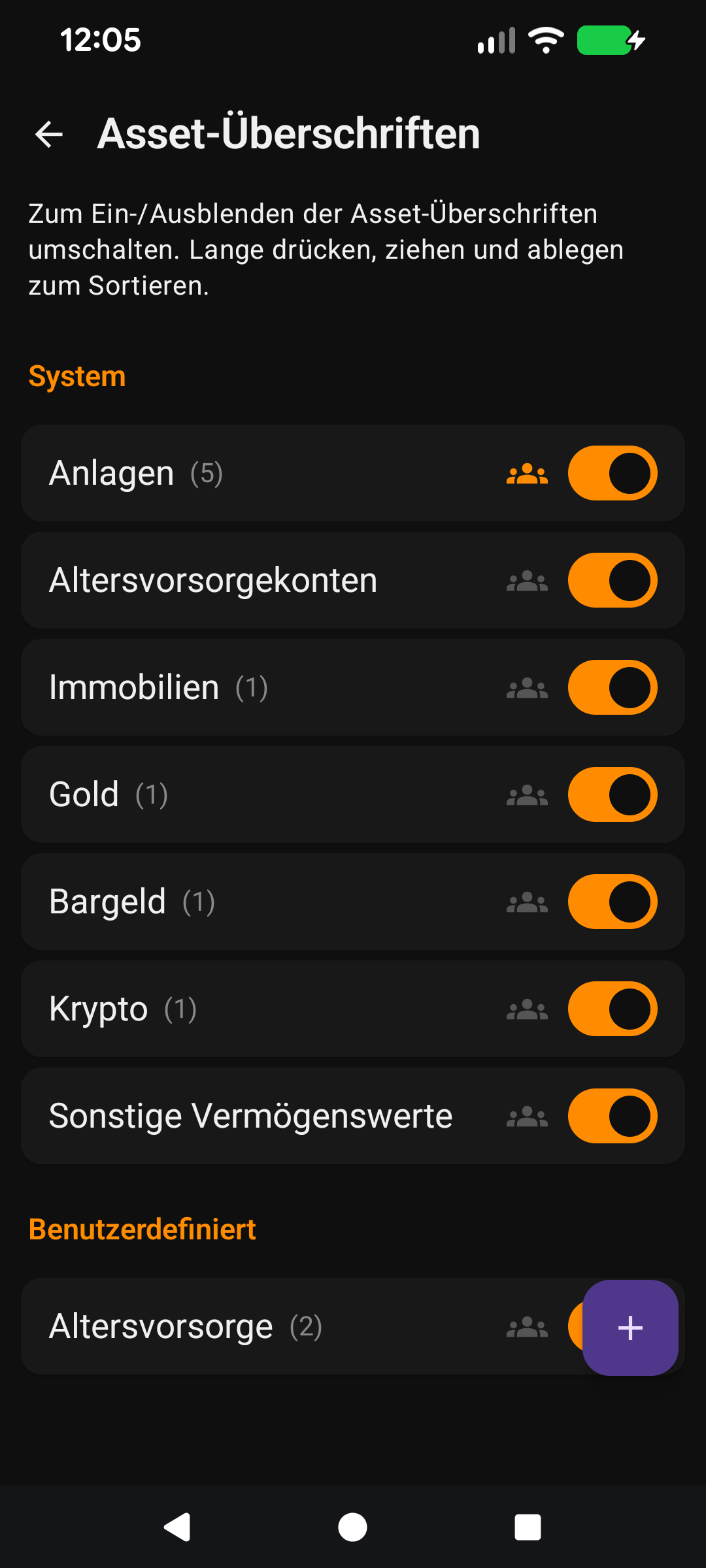
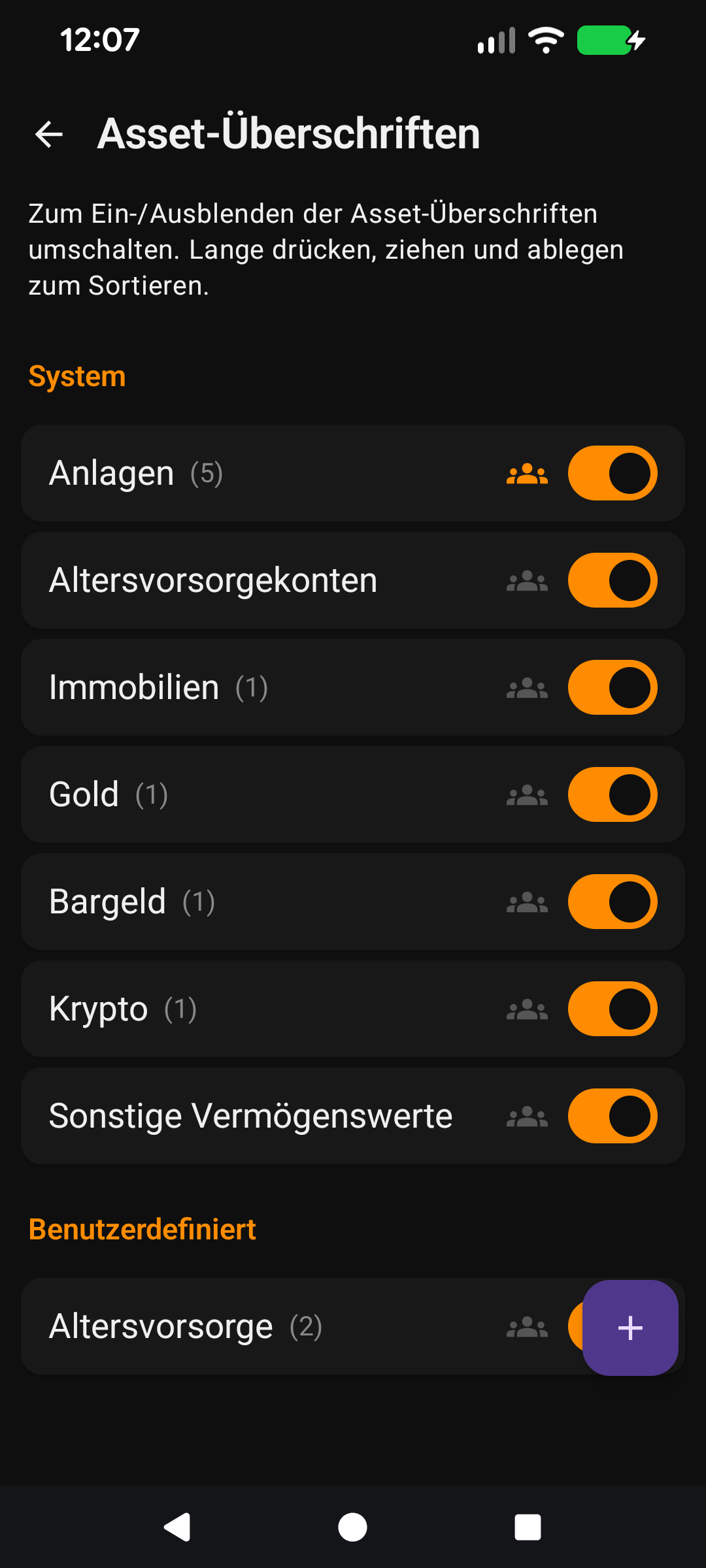
Show/hide with the eye icon — hide an entry from chip rows without deleting it. Un-hide to bring it back.
Rename your own entries — the entries that ship with FirePath are fixed, but any custom entry you've added can be renamed. Changes cascade through every row that references the old name.
Add your own — the + button at the bottom of each list. Your custom entries are fully renameable and deletable.
The rest of this guide is for users who want to tune the screen. If you're happy with the defaults, you can stop here — everything below is optional customisation.
Going deeper
Why App Lists exist
FirePath ships with sensible defaults — the Asset Headings include Investments, Super, Property, Cash; Investment Types include Stock, ETF, Crypto, etc. But no default fits every user. An Australian tracking small-business ownership wants a custom "Business" heading. A German ETF investor wants Xetra-specific categories. A family wants owner sub-sections.
App Lists is the app's answer: every list that drives a chip row or dropdown is yours to edit. The layout is the same across all nine lists — once you learn one, you know them all.
Drag-sort
① Show/hide eye. ② Name. ③ Drag handle. ④ Overflow menu (rename / delete).
Long-press the drag handle on the right of any row and drag up or down. Haptic feedback fires at pickup and drop. The order you set is persisted per-row via a sort_order column — so it sticks across sessions and (if you use Google Drive auto-backup) across devices.
On the Add/Edit screens, chip rows render in the order you set here. Put your most-used headings first and you'll tap fewer times per asset.
Show/hide vs delete
The eye icon on each row toggles show on and off. Hidden rows:
Don't appear in chip rows on Add/Edit screens.
Don't contribute to their respective sub-sections on list screens.
Don't roll up into totals (e.g. hiding a heading drops its assets out of Net Worth totals until un-hidden).
Don't delete any data. Un-hide and everything comes back exactly as it was.
Delete (the bin icon) actually removes the row. It's blocked if any other record references the row — you get a count message like "Move or reassign the 3 assets referencing this heading before deleting". Safer than silently orphaning data.
Rename cascades
① Rename "Super" to "Pension". ② Every referencing asset updates in one transaction.
Renaming a row in App Lists updates every referencing record in a single database transaction. Rename Super to Pension and every asset, liability, income, and expense with heading = Super gets updated too.
Under the hood, references are stored as strings (not foreign keys) for backup/restore portability — but the cascade keeps them in sync automatically. You never have to manually re-assign anything.
Adding custom entries
① Name field. ② Char counter enforces the per-list cap.
The + button at the bottom of each list pops a small dialog with a name field. Max-length caps apply per list type:
Asset / Liability Headings: 30 chars
Investment Types: 20 chars
Categories (Income / Expense): 30 chars
Owners: 20 chars
The cap exists to stop 500-char labels from breaking list rows, widget strings, and PDF exports. If you hit the cap, shorten the name — nothing in the app requires long names.
The nine lists in detail
Asset Headings — the groupings on the Net Worth → Assets tab. Defaults: Investments, Super, Property, Cash, Crypto, Gold, Other Assets. Used by the Add/Edit Asset screen.
Liability Headings — same for debts. Defaults: Mortgage, Investment Loan, Loan, Credit Card, Other Liabilities. Used by the Add/Edit Liability screen.
Investment Types — the Asset Type chip row on Add/Edit Asset. Defaults: Stock, ETF, Crypto, Managed Fund, Property, Cash, Bullion, Other. Add custom types for unusual portfolio pieces (e.g., "Pre-IPO", "Private Equity", "Angel").
Exchanges — the Exchange chip row on Add/Edit Asset (shown only for ticker-backed types). Drives which market a ticker is queried against. Region-specific defaults; add your own if you trade on an obscure exchange.
Income Categories / Expense Categories — drive the category chip row on Add/Edit Income and Expense. Reorder to put your most-used at the front.
Owners — the people in your household. Enable via Settings → Display → Enable Owners first; then add everyone. Used across every Add/Edit screen and optionally for per-heading sub-sections on Net Worth.
Dashboard Cards — which cards appear on the Dashboard and in what order. Hide ones you don't use to keep the screen focused.
FIRE Cards — same idea for the FIRE screen. Hide variants you don't care about (e.g., hide Fat if you're chasing Regular).
Resetting to defaults
App Lists doesn't have a "reset all" button — the app assumes your customisations are intentional. If you truly want to start over, reinstall the app (wipes all local data) or clear app data from Android's Settings → Apps → FirePath. Back up first if you have Google Drive auto-backup enabled — your customisations are stored there too.
Make it yours — Settings that affect this screen
This guide is the Make it yours reference for the whole app. Every list section below has its own row on the Settings → App Lists screen.
Schnellstart
Einstellungen → App-Listen ist das Kontrollpanel hinter jeder Chip-Reihe und jedem Auswahlmenü in FirePath. Wenn Sie sich jemals gefragt haben "kann ich das ändern?" — fast immer ja, und hier ist der Ort dafür.
Ziehen zum Neuordnen — die Reihenfolge, die Sie in App-Listen sehen, ist die Reihenfolge, in der die Chips auf Hinzufügen-/Bearbeiten-Bildschirmen erscheinen.
Ein-/Ausblenden mit dem Augensymbol — einen Eintrag aus Chip-Reihen ausblenden, ohne ihn zu löschen. Einblenden, um ihn zurückzuholen.
Ihre eigenen Einträge umbenennen — die mit FirePath mitgelieferten Einträge sind fest, aber jeder benutzerdefinierte Eintrag, den Sie hinzugefügt haben, kann umbenannt werden. Änderungen kaskadieren durch jede Zeile, die den alten Namen referenziert.
Eigene hinzufügen — die +-Schaltfläche unten in jeder Liste. Ihre benutzerdefinierten Einträge sind vollständig umbenennbar und löschbar.
Der Rest dieser Anleitung ist für Nutzer, die den Bildschirm anpassen möchten. Wenn Sie mit den Standardeinstellungen zufrieden sind, können Sie hier aufhören — alles unten ist optionale Anpassung.
Tiefer eintauchen
Warum App-Listen existieren
FirePath liefert vernünftige Standardeinstellungen — die Vermögensüberschriften enthalten Investments, Super, Immobilien, Bargeld; die Anlageklassen enthalten Aktie, ETF, Krypto usw. Aber keine Standardeinstellung passt zu jedem Nutzer. Ein Australier, der ein Kleinunternehmen verfolgt, möchte eine benutzerdefinierte "Unternehmen"-Überschrift. Ein deutscher ETF-Investor möchte Xetra-spezifische Kategorien. Eine Familie möchte Eigentümer-Unterabschnitte.
App-Listen ist die Antwort der App: Jede Liste, die eine Chip-Reihe oder ein Auswahlmenü antreibt, können Sie bearbeiten. Das Layout ist bei allen neun Listen gleich — sobald Sie eine gelernt haben, kennen Sie alle.
Drag-Sortierung
① Ein-/Ausblenden-Auge. ② Name. ③ Ziehgriff. ④ Überlaufmenü (umbenennen / löschen).
Drücken Sie lange auf den Ziehgriff rechts in einer beliebigen Zeile und ziehen Sie nach oben oder unten. Haptisches Feedback wird beim Aufnehmen und Ablegen ausgelöst. Die von Ihnen festgelegte Reihenfolge wird pro Zeile über eine sort_order-Spalte gespeichert — sie bleibt also über Sitzungen hinweg und (wenn Sie die automatische Google Drive-Sicherung nutzen) über Geräte hinweg erhalten.
Auf den Hinzufügen-/Bearbeiten-Bildschirmen werden Chip-Reihen in der von Ihnen festgelegten Reihenfolge gerendert. Stellen Sie Ihre am häufigsten genutzten Überschriften nach vorne, und Sie tippen pro Vermögenswert weniger.
Ein-/Ausblenden vs. Löschen
Das Augensymbol in jeder Zeile schaltet Anzeigen ein oder aus. Ausgeblendete Zeilen:
Erscheinen nicht in Chip-Reihen auf Hinzufügen-/Bearbeiten-Bildschirmen.
Tragen nicht zu ihren entsprechenden Unterabschnitten auf Listen-Bildschirmen bei.
Gehen nicht in Summen ein (z. B. blendet das Ausblenden einer Überschrift deren Vermögenswerte aus den Nettovermögen-Summen aus, bis sie wieder eingeblendet wird).
Löschen keine Daten. Einblenden, und alles kommt genau so zurück, wie es war.
Das Löschen (das Papierkorbsymbol) entfernt die Zeile tatsächlich. Es ist blockiert, wenn andere Einträge die Zeile referenzieren — Sie erhalten eine Anzahlmeldung wie "Verschieben oder weisen Sie die 3 Vermögenswerte, die diese Überschrift referenzieren, neu zu, bevor Sie löschen". Sicherer als das stille Verwaisen von Daten.
Kaskadenumbenennungen
① "Super" in "Rente" umbenennen. ② Jeder referenzierende Vermögenswert wird in einer Transaktion aktualisiert.
Das Umbenennen einer Zeile in App-Listen aktualisiert jeden referenzierenden Eintrag in einer einzigen Datenbanktransaktion. Benennen Sie Super in Rente um, und jeder Vermögenswert, jede Verbindlichkeit, jede Einnahme und jede Ausgabe mit Überschrift = Super wird ebenfalls aktualisiert.
Intern werden Referenzen als Zeichenketten (nicht als Fremdschlüssel) für die Übertragbarkeit von Sicherungen gespeichert — aber die Kaskade hält sie automatisch synchron. Sie müssen nie manuell etwas neu zuweisen.
Benutzerdefinierte Einträge hinzufügen
① Namensfeld. ② Zeichenzähler erzwingt das Limit pro Liste.
Die +-Schaltfläche unten in jeder Liste öffnet einen kleinen Dialog mit einem Namensfeld. Maximale Längenbegrenzungen gelten pro Listentyp:
Die Begrenzung existiert, damit 500-Zeichen-Beschriftungen keine Listenzeilen, Widget-Texte und PDF-Exporte zerstören. Wenn Sie das Limit erreichen, kürzen Sie den Namen — nichts in der App erfordert lange Namen.
Die neun Listen im Detail
Vermögensüberschriften — die Gruppierungen auf dem Nettovermögen → Vermögenswerte-Tab. Standardeinstellungen: Investments, Super, Immobilien, Bargeld, Krypto, Gold, Sonstige Vermögenswerte. Verwendet vom Bildschirm Vermögenswert hinzufügen/bearbeiten.
Verbindlichkeitsüberschriften — dasselbe für Schulden. Standardeinstellungen: Hypothek, Investmentkredit, Kredit, Kreditkarte, Sonstige Verbindlichkeiten. Verwendet vom Bildschirm Verbindlichkeit hinzufügen/bearbeiten.
Anlageklassen — die Anlageklassen-Chip-Reihe auf Vermögenswert hinzufügen/bearbeiten. Standardeinstellungen: Aktie, ETF, Krypto, Managed Fund, Immobilie, Bargeld, Edelmetall, Sonstiges. Fügen Sie benutzerdefinierte Typen für ungewöhnliche Portfolio-Teile hinzu (z. B. "Pre-IPO", "Private Equity", "Angel").
Börsen — die Börsen-Chip-Reihe auf Vermögenswert hinzufügen/bearbeiten (nur für ticker-basierte Typen angezeigt). Bestimmt, an welchem Markt ein Ticker abgefragt wird. Regionsspezifische Standardeinstellungen; fügen Sie eigene hinzu, wenn Sie an einer obskuren Börse handeln.
Einnahmenkategorien / Ausgabenkategorien — treiben die Kategorie-Chip-Reihe auf Einnahme/Ausgabe hinzufügen/bearbeiten an. Ordnen Sie neu, um Ihre am häufigsten genutzten nach vorne zu stellen.
Eigentümer — die Personen in Ihrem Haushalt. Aktivieren Sie zuerst über Einstellungen → Anzeige → Eigentümer aktivieren; fügen Sie dann jeden hinzu. Verwendet auf jedem Hinzufügen-/Bearbeiten-Bildschirm und optional für Unterabschnitte pro Überschrift auf dem Nettovermögen-Bildschirm.
Dashboard-Karten — welche Karten auf dem Dashboard erscheinen und in welcher Reihenfolge. Blenden Sie aus, was Sie nicht nutzen, um den Bildschirm fokussiert zu halten.
FIRE-Karten — gleiche Idee für den FIRE-Bildschirm. Blenden Sie Varianten aus, die Sie nicht interessieren (z. B. Fat ausblenden, wenn Sie Regular verfolgen).
Auf Standard zurücksetzen
App-Listen hat keine "Alles zurücksetzen"-Schaltfläche — die App nimmt an, dass Ihre Anpassungen absichtlich sind. Wenn Sie wirklich von vorne beginnen möchten, installieren Sie die App neu (löscht alle lokalen Daten) oder löschen Sie App-Daten aus Androids Einstellungen → Apps → FirePath. Sichern Sie zuerst, wenn Sie die automatische Google Drive-Sicherung aktiviert haben — Ihre Anpassungen sind auch dort gespeichert.
Machen Sie es zu Ihrem — Einstellungen, die diesen Bildschirm beeinflussen
Diese Anleitung ist die "Machen Sie es zu Ihrem"-Referenz für die ganze App. Jeder Listenabschnitt unten hat seine eigene Zeile auf dem Bildschirm Einstellungen → App-Listen.