Adding an asset, from ticker to totalEinen Vermögenswert hinzufügen, vom Ticker zur Summe
Adding an asset from scratch: heading + type chips, ticker + quantity + price, region-default exchange picker, liquid-cash opt-in for Super-held cash, auto-fetched prices.Einen Vermögenswert von Grund auf hinzufügen: Überschrift- und Typ-Chips, Ticker + Menge + Kurs, regionale Standard-Börsenauswahl, Liquides-Bargeld-Opt-in für in Super gehaltenes Bargeld, automatisch abgerufene Kurse.
Quick start
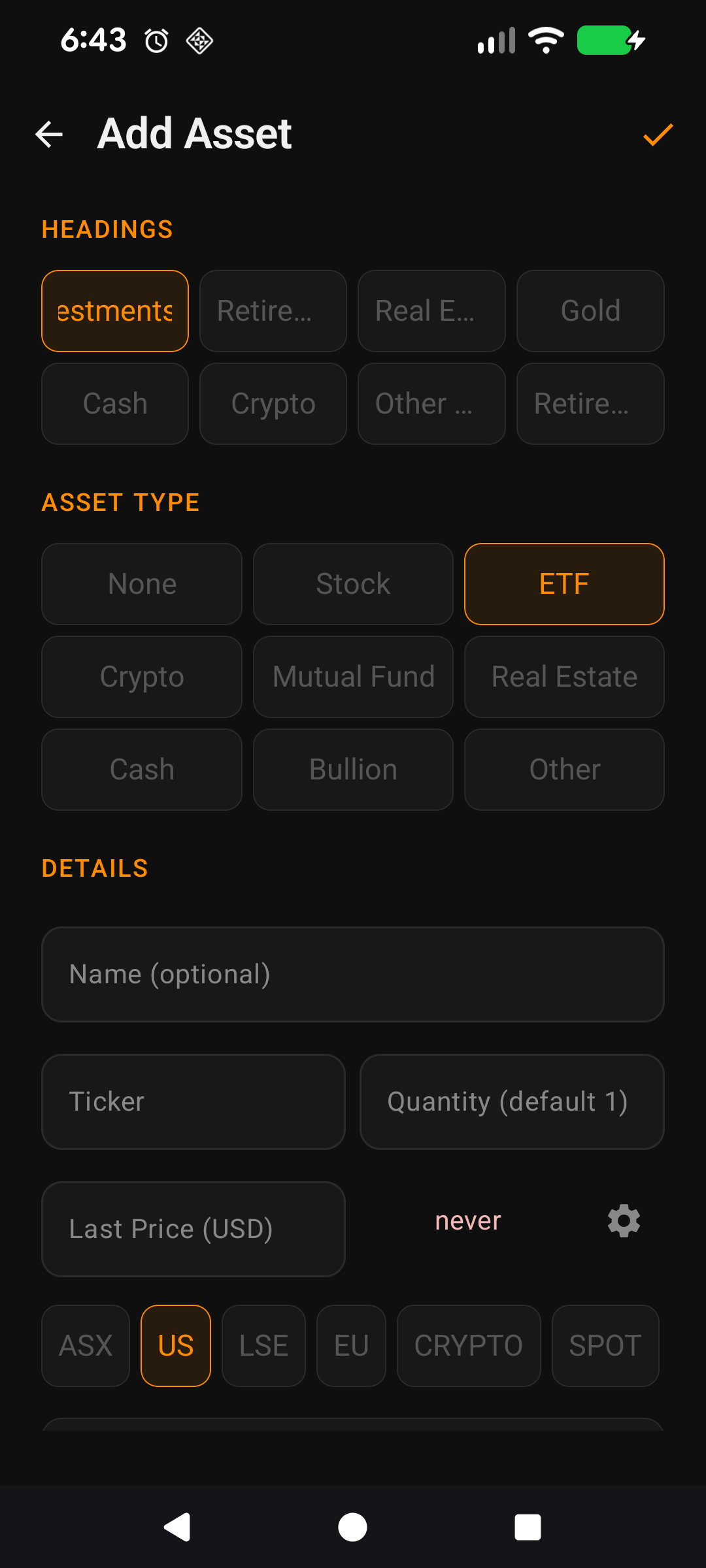
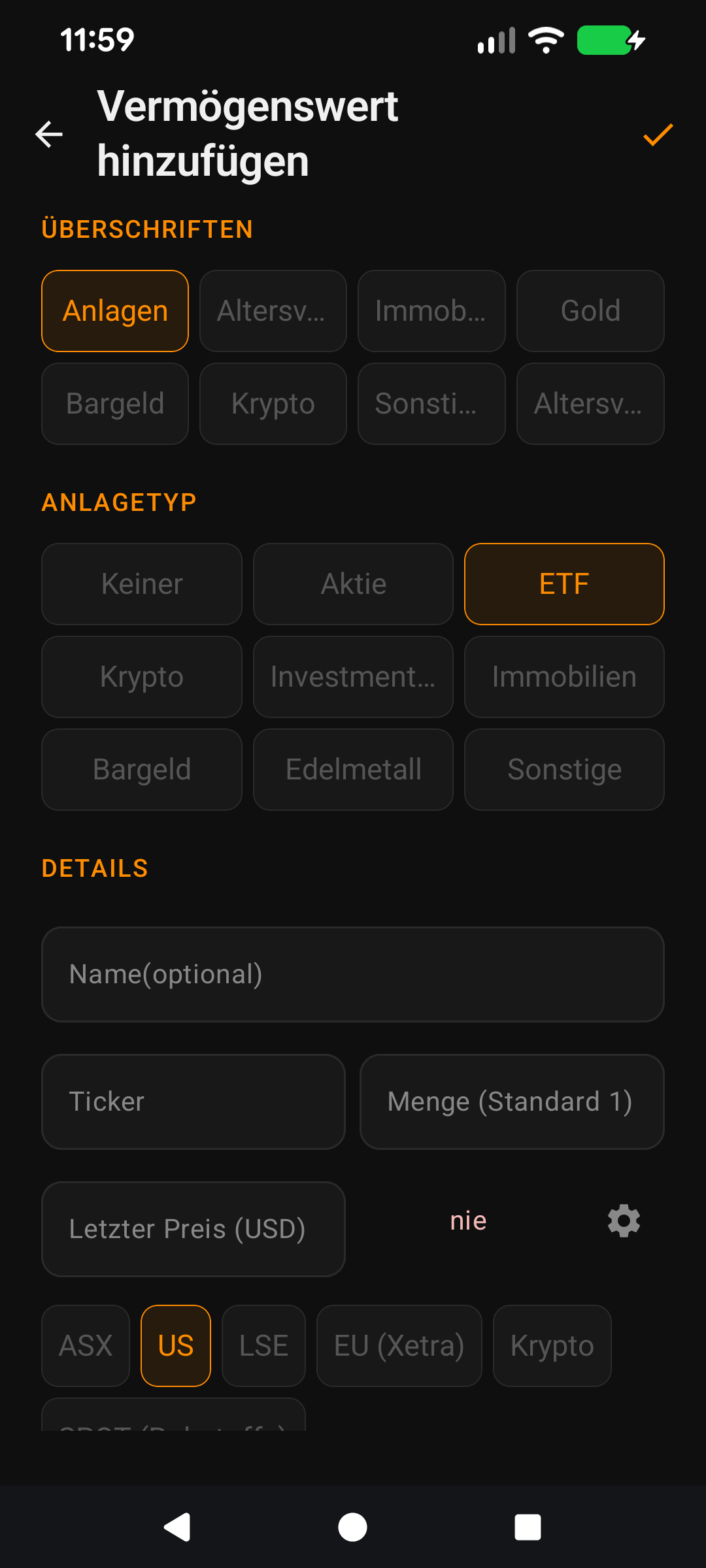
The Add Asset screen is how every holding enters FirePath. It's a single form with four key pieces: what kind of asset, what it's called, how much you have, and who owns it.
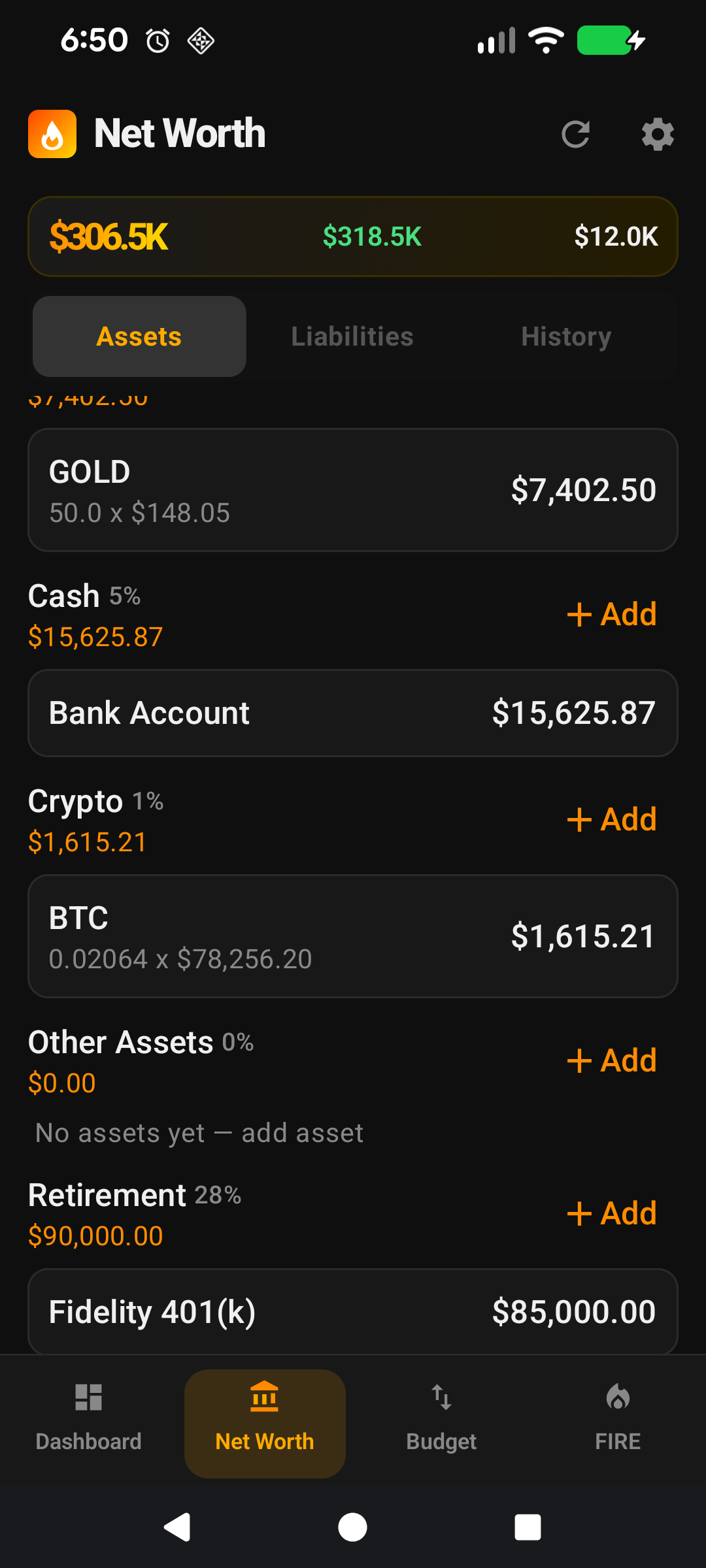
Pick a heading — Investments, Super, Cash, Property, whatever makes sense. Headings drive the grouping you see on the Net Worth screen.
Pick an asset type — Stock, ETF, Crypto, Managed Fund, Property, Cash, Bullion, or Other. The form adapts based on your choice.
Ticker-backed types (STOCK, ETF, CRYPTO, BULLION) ask for a ticker, quantity, and an optional last-known price. FirePath pulls fresh prices automatically.
Manual types (PROPERTY, CASH, OTHER, MANAGED_FUND) ask for a value-per-unit and a quantity. Use quantity 1 for single-item assets like a house.
Tap the tick at the top-right to save. That's it.
The rest of this guide is for users who want to tune the screen. If you're happy with the defaults, you can stop here — everything below is optional customisation.
Going deeper
The Heading chip row
Every heading you've enabled in Settings appears as a chip at the top of the form. Tap one to set the asset's heading. The number of columns adapts to your screen width — 4 on phone portrait, 6 on phone landscape, 8 on tablet landscape. If the label is longer than the chip width it ellipsizes; tap the chip to select it and the label marquees so you can read the whole thing.
Picking a heading sometimes pre-fills the asset type: picking Super defaults the type to Managed Fund; picking Gold defaults to Bullion; picking Cash defaults to Cash. You can still override.
The Asset Type chip row
① None. ② Stock / ETF / Crypto / Managed Fund / Property / Cash / Bullion / Other. ③ Form fields below adapt to the selection.
Right below the heading row. The form morphs depending on what you pick:
STOCK / ETF / CRYPTO show Ticker + Quantity (same row), Last Price (full-width), and Exchange chips.
BULLION same as above but the Exchange chip row is hidden (Bullion is always on the SPOT virtual exchange) and the Ticker is one of GOLD / SILVER / PLATINUM / PALLADIUM.
MANAGED_FUND asks for value-per-unit and quantity — useful for Super funds where you have a unit count and a unit price.
PROPERTY / CASH / OTHER ask for a single value. Quantity defaults to 1 so you enter the total in the value field.
The None option at the start of the Asset Type row is there for unusual cases where you want a heading-only grouping without committing to a specific type.
Name: the subtle rule
On ticker-backed types the Name field is labelled Name (optional). Leave it blank and FirePath uses the ticker as the name on save. So for most of your stocks and ETFs you can skip typing a name entirely.
On manual types (PROPERTY, CASH, OTHER, MANAGED_FUND) the Name field loses the "(optional)" label and becomes required — because there's no ticker to fall back to. If you forget, the save button gives you a validation error on the Name field.
Ticker + Quantity on the same row
① Ticker auto-uppercases as you type. ② Quantity accepts decimals for fractional shares.
Both are short inputs users tend to fill in together, so they share a 50/50 row. Ticker auto-uppercases as you type. Quantity accepts decimals (for fractional shares / crypto / partial ETF units).
Last Price, full width
① Cursor-at-end — no tapping past existing text to append a digit.
The Last Price field takes its own row below. You can leave it blank on save and FirePath will fetch the current price in the background within 15 minutes. If you know the current price, enter it so the asset shows the right value immediately.
Cursor-at-end on edit. When you open an existing ticker-backed asset to edit, the cursor jumps straight into the Last Price field with the caret parked at the end of the existing value — so you can quickly append a decimal, backspace a digit, or overwrite. No tapping past the existing text to get to the end.
Exchange chip row (ticker-backed only)
① Region default pre-selected. ② ASX / US / LSE / EU / CRYPTO / SPOT. ③ Always overridable.
If the asset type needs a ticker, the Exchange chip row shows below Last Price. Tap to pick. The row is pre-selected based on your region: AU users default to ASX, US users to US, UK to LSE, Germany to EU (Xetra). You can always override — an Australian can hold US stocks, a Brit can hold crypto, etc.
BULLION and CRYPTO force their exchange regardless of region (SPOT and CRYPTO respectively) — these are virtual exchanges representing "everywhere", not a specific market.
Include in Investment Net Worth (the toggle below)
On by default. Turn off for personal-use assets like your primary residence, car, watch collection — anything that isn't funding your retirement. The asset still appears on the Net Worth screen, still contributes to your Total NW, but sits out of the Investment NW calculation and the FIRE projections.
Include in Liquid Cash (the clever bit for Super)
① Appears only on CASH type. ② Lets retirees count Super-held cash as liquid.
This toggle only appears when the asset type is CASH. Normally off; flip on for cash-type assets that you consider liquid. The Dashboard's Total Cash card sums every asset where this toggle is on.
The clever use case: a cash balance held inside your Super fund. Technically it's "in Super", but for retirees or those near preservation age, it's functionally liquid. This toggle lets you represent that nuance without cramming the Super heading full of complicated exceptions. A younger user wouldn't tick it on; a retiree might.
Owner (when enabled)
If you've enabled Owners in Settings, the Owner chip row appears below the toggles. Tap who the asset belongs to, or leave None for shared items. Picking an owner affects how the asset appears on Net Worth (sub-sectioned by owner in opted-in headings) but not any totals.
Delete (on edit only)
Opening an existing asset shows a bin icon in the top bar. Tap it to delete — a confirm dialog appears with the asset name so you don't fat-finger a deletion. Deletion removes the asset row and also prunes any associated asset-history entries (so your Net Worth history chart doesn't get weird).
Make it yours — Settings that affect this screen
Asset Headings — Settings → App Lists → Asset Headings. Reorder and hide the built-in headings; add your own custom headings to use names the app doesn't ship with (custom headings are fully renameable and deletable). The chip row on this screen reflects the list in the order you set.
Investment Types — Settings → App Lists → Investment Types. Same pattern for the Asset Type chip row: reorder/hide built-ins, add your own for unusual holdings.
Exchanges — Settings → App Lists → Exchanges. Shows only for ticker-backed types. Pre-selected based on your region (ASX for AU, US for US users, LSE for UK, EU for Germany). Reorder/hide the built-ins or add a custom exchange if you trade somewhere FirePath doesn't cover.
Owners — Settings → App Lists → Owners. The chip row only appears when Owners is enabled and ≥1 owner exists.
Auto-pricing — Settings → Premium. Controls whether saved ticker-backed assets get their prices refreshed in the background.
Schnellstart
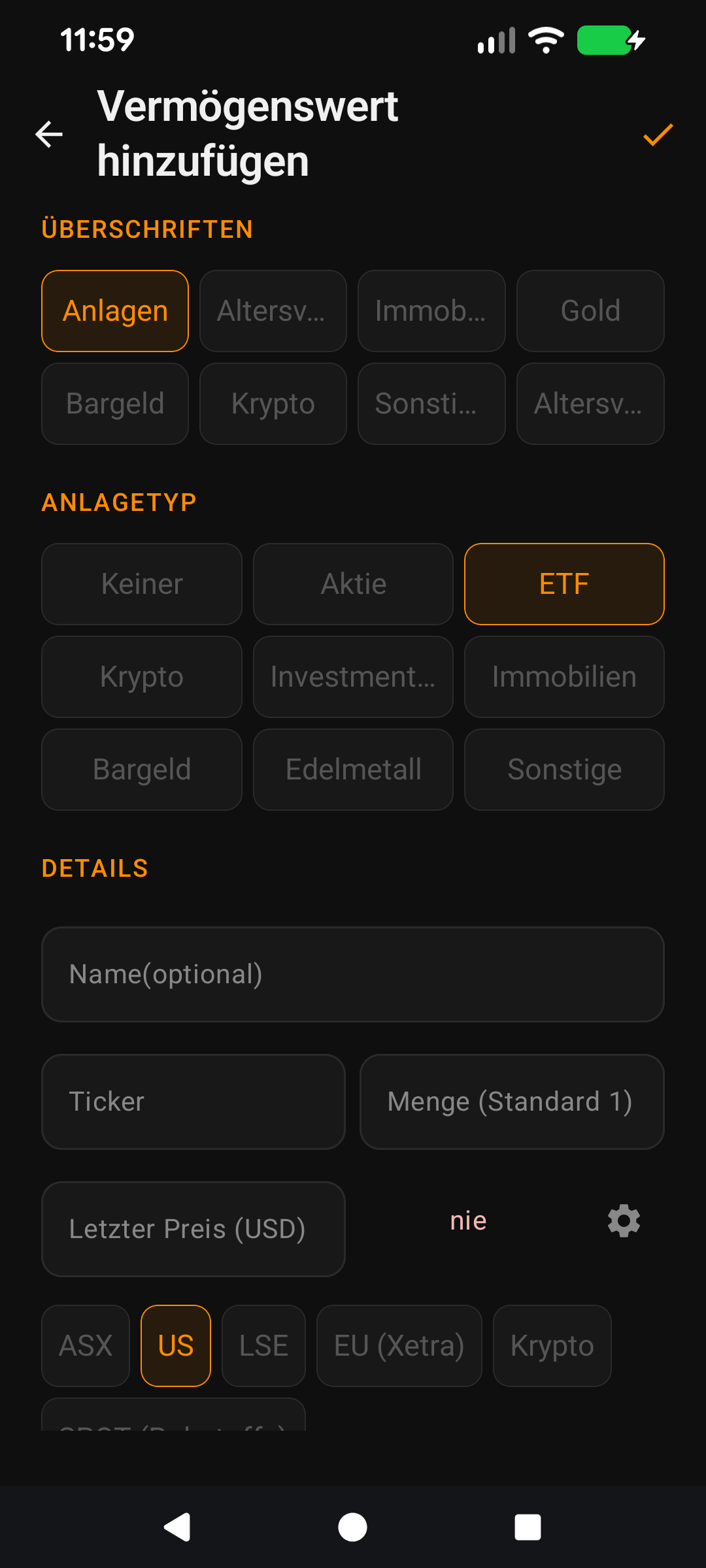
Der Bildschirm "Vermögenswert hinzufügen" ist der Weg, wie jeder Bestand in FirePath landet. Es ist ein einziges Formular mit vier Schlüsselteilen: Welche Art von Vermögenswert, wie er heißt, wie viel Sie haben und wem er gehört.
Wählen Sie eine Überschrift — Investments, Super, Bargeld, Immobilien, was auch immer Sinn ergibt. Überschriften steuern die Gruppierung, die Sie auf dem Nettovermögen-Bildschirm sehen.
Wählen Sie eine Anlageklasse — Aktie, ETF, Krypto, Managed Fund, Immobilie, Bargeld, Edelmetall oder Sonstiges. Das Formular passt sich Ihrer Auswahl an.
Ticker-basierte Typen (STOCK, ETF, CRYPTO, BULLION) fragen nach einem Ticker, einer Menge und einem optionalen zuletzt bekannten Kurs. FirePath zieht automatisch frische Kurse.
Manuelle Typen (PROPERTY, CASH, OTHER, MANAGED_FUND) fragen nach einem Wert pro Einheit und einer Menge. Verwenden Sie Menge 1 für Einzelobjekte wie ein Haus.
Tippen Sie auf das Häkchen oben rechts, um zu speichern. Das ist alles.
Der Rest dieser Anleitung ist für Nutzer, die den Bildschirm anpassen möchten. Wenn Sie mit den Standardeinstellungen zufrieden sind, können Sie hier aufhören — alles unten ist optionale Anpassung.
Tiefer eintauchen
Die Überschriften-Chip-Reihe
Jede Überschrift, die Sie in den Einstellungen aktiviert haben, erscheint als Chip oben im Formular. Tippen Sie auf eine, um die Überschrift des Vermögenswerts festzulegen. Die Anzahl der Spalten passt sich Ihrer Bildschirmbreite an — 4 auf dem Telefon im Hochformat, 6 auf dem Telefon im Querformat, 8 auf dem Tablet im Querformat. Wenn die Beschriftung länger als die Chip-Breite ist, wird sie gekürzt; tippen Sie auf den Chip, um ihn auszuwählen, und die Beschriftung läuft durch, damit Sie sie ganz lesen können.
Das Auswählen einer Überschrift füllt manchmal die Anlageklasse vor: Bei Super wird der Typ standardmäßig auf Managed Fund gesetzt; bei Gold auf Edelmetall; bei Bargeld auf Bargeld. Sie können dies weiterhin überschreiben.
Die Anlageklassen-Chip-Reihe
① Keine. ② Aktie / ETF / Krypto / Managed Fund / Immobilie / Bargeld / Edelmetall / Sonstiges. ③ Die Formularfelder darunter passen sich der Auswahl an.
Direkt unter der Überschriften-Reihe. Das Formular verändert sich je nach Auswahl:
BULLION wie oben, aber die Börsen-Chip-Reihe ist ausgeblendet (Edelmetalle sind immer auf der virtuellen SPOT-Börse), und der Ticker ist einer von GOLD / SILBER / PLATIN / PALLADIUM.
MANAGED_FUND fragt nach Wert pro Einheit und Menge — nützlich für Super-Fonds, bei denen Sie eine Einheitenzahl und einen Einheitenpreis haben.
PROPERTY / CASH / OTHER fragen nach einem einzigen Wert. Die Menge ist standardmäßig 1, sodass Sie die Gesamtsumme im Wertfeld eingeben.
Die Option "Keine" am Anfang der Anlageklassen-Reihe ist für ungewöhnliche Fälle gedacht, in denen Sie eine reine Überschriftengruppierung ohne Festlegung eines bestimmten Typs wünschen.
Name: die subtile Regel
Bei ticker-basierten Typen ist das Namensfeld mit Name (optional) beschriftet. Lassen Sie es leer, und FirePath verwendet beim Speichern den Ticker als Namen. Für die meisten Ihrer Aktien und ETFs können Sie also die Eingabe eines Namens überspringen.
Bei manuellen Typen (PROPERTY, CASH, OTHER, MANAGED_FUND) verliert das Namensfeld die Beschriftung "(optional)" und wird zur Pflicht — weil es keinen Ticker als Rückfalloption gibt. Wenn Sie es vergessen, gibt die Speichern-Schaltfläche einen Validierungsfehler am Namensfeld aus.
Ticker + Menge in derselben Zeile
① Ticker wird beim Tippen automatisch großgeschrieben. ② Menge akzeptiert Dezimalzahlen für Bruchteile von Aktien.
Beides sind kurze Eingaben, die Nutzer meist zusammen ausfüllen, daher teilen sie sich eine 50/50-Zeile. Ticker wird beim Tippen automatisch großgeschrieben. Menge akzeptiert Dezimalzahlen (für Bruchteile von Aktien / Krypto / Teil-ETF-Einheiten).
Letzter Kurs, volle Breite
① Cursor-am-Ende — kein Tippen durch bestehenden Text, um eine Ziffer anzuhängen.
Das Letzter-Kurs-Feld belegt seine eigene Zeile darunter. Sie können es beim Speichern leer lassen, und FirePath ruft innerhalb von 15 Minuten im Hintergrund den aktuellen Kurs ab. Wenn Sie den aktuellen Kurs kennen, geben Sie ihn ein, damit der Vermögenswert sofort den richtigen Wert anzeigt.
Cursor-am-Ende beim Bearbeiten. Wenn Sie einen bestehenden ticker-basierten Vermögenswert zum Bearbeiten öffnen, springt der Cursor direkt in das Letzter-Kurs-Feld, wobei die Einfügemarke am Ende des bestehenden Werts geparkt ist — so können Sie schnell eine Dezimalstelle anhängen, eine Ziffer löschen oder überschreiben. Kein Tippen durch bestehenden Text, um ans Ende zu kommen.
Börsen-Chip-Reihe (nur ticker-basiert)
① Regionsspezifischer Standard vorausgewählt. ② ASX / US / LSE / EU / CRYPTO / SPOT. ③ Immer überschreibbar.
Wenn die Anlageklasse einen Ticker benötigt, erscheint die Börsen-Chip-Reihe unter Letzter Kurs. Tippen Sie zum Auswählen. Die Reihe ist basierend auf Ihrer Region vorausgewählt: AU-Nutzer standardmäßig auf ASX, US-Nutzer auf US, UK auf LSE, Deutschland auf EU (Xetra). Sie können immer überschreiben — ein Australier kann US-Aktien halten, ein Brite Krypto usw.
BULLION und CRYPTO erzwingen ihre Börse unabhängig von der Region (SPOT bzw. CRYPTO) — diese sind virtuelle Börsen, die "überall" repräsentieren, nicht einen bestimmten Markt.
In Investment-Nettovermögen einbeziehen (der Umschalter darunter)
Standardmäßig an. Schalten Sie für persönlich genutzte Vermögenswerte wie Ihren Hauptwohnsitz, Ihr Auto oder Ihre Uhrensammlung aus — alles, was nicht Ihre Rente finanziert. Der Vermögenswert erscheint weiterhin auf dem Nettovermögen-Bildschirm und trägt weiterhin zu Ihrem Gesamt-Nettovermögen bei, bleibt aber aus der Investment-Nettovermögen-Berechnung und den FIRE-Prognosen heraus.
In liquides Bargeld einbeziehen (der clevere Teil für Super)
① Erscheint nur beim CASH-Typ. ② Lässt Rentner in Super gehaltenes Bargeld als liquid zählen.
Dieser Umschalter erscheint nur, wenn die Anlageklasse CASH ist. Normalerweise aus; aktivieren Sie ihn für Bargeld-Vermögenswerte, die Sie als liquid betrachten. Die Gesamtbargeld-Karte des Dashboards summiert jeden Vermögenswert, bei dem dieser Umschalter an ist.
Der clevere Anwendungsfall: ein Bargeldbestand innerhalb Ihres Super-Fonds. Technisch ist er "in Super", aber für Rentner oder solche nahe dem Auszahlungsalter ist er funktional liquid. Dieser Umschalter lässt Sie diese Nuance abbilden, ohne die Super-Überschrift mit komplizierten Ausnahmen zu überladen. Ein jüngerer Nutzer würde ihn nicht aktivieren; ein Rentner schon.
Eigentümer (wenn aktiviert)
Wenn Sie Eigentümer in den Einstellungen aktiviert haben, erscheint die Eigentümer-Chip-Reihe unter den Umschaltern. Tippen Sie, wem der Vermögenswert gehört, oder lassen Sie Keiner für gemeinsame Einträge. Die Auswahl eines Eigentümers beeinflusst, wie der Vermögenswert auf dem Nettovermögen-Bildschirm erscheint (nach Eigentümer in aktivierten Überschriften aufgeteilt), aber keine Summen.
Löschen (nur beim Bearbeiten)
Das Öffnen eines bestehenden Vermögenswerts zeigt ein Papierkorb-Symbol in der oberen Leiste. Tippen Sie darauf, um zu löschen — ein Bestätigungsdialog erscheint mit dem Namen des Vermögenswerts, damit Sie nicht versehentlich löschen. Das Löschen entfernt die Vermögensreihe und bereinigt auch alle zugehörigen Vermögensverlaufseinträge (damit Ihr Nettovermögen-Verlaufsdiagramm nicht seltsam wird).
Machen Sie es zu Ihrem — Einstellungen, die diesen Bildschirm beeinflussen
Vermögensüberschriften — Einstellungen → App-Listen → Vermögensüberschriften. Ordnen Sie die integrierten Überschriften neu an und blenden Sie sie aus; fügen Sie eigene benutzerdefinierte Überschriften hinzu, um Namen zu verwenden, die die App nicht mitliefert (benutzerdefinierte Überschriften sind vollständig umbenennbar und löschbar). Die Chip-Reihe auf diesem Bildschirm spiegelt die Liste in der festgelegten Reihenfolge wider.
Anlageklassen — Einstellungen → App-Listen → Anlageklassen. Gleiches Muster für die Anlageklassen-Chip-Reihe: integrierte neu ordnen/ausblenden, eigene für ungewöhnliche Bestände hinzufügen.
Börsen — Einstellungen → App-Listen → Börsen. Wird nur für ticker-basierte Typen angezeigt. Basierend auf Ihrer Region vorausgewählt (ASX für AU, US für US-Nutzer, LSE für UK, EU für Deutschland). Integrierte neu ordnen/ausblenden oder eine benutzerdefinierte Börse hinzufügen, wenn Sie irgendwo handeln, das FirePath nicht abdeckt.
Eigentümer — Einstellungen → App-Listen → Eigentümer. Die Chip-Reihe erscheint nur, wenn Eigentümer aktiviert sind und ≥1 Eigentümer existiert.
Automatische Kurse — Einstellungen → Premium. Steuert, ob gespeicherte ticker-basierte Vermögenswerte ihre Kurse im Hintergrund aktualisiert bekommen.