Your data, where it lives, how it's protected. Local-first storage, optional encrypted backup to your own Drive, biometric lock, and a server posture that holds zero user data — only ticker prices.Ihre Daten, wo sie leben, wie sie geschützt sind. Lokale Speicherung zuerst, optionale verschlüsselte Sicherung in Ihrem eigenen Drive, biometrische Sperre und eine Serverhaltung, die keine Nutzerdaten vorhält – nur Ticker-Kurse.
Quick start
FirePath is built around one principle: your financial data belongs to you and stays with you. No account needed, no cloud required, no third party involved in the default flow.
Local-first — every asset, liability, income, expense, and snapshot lives in a database on your phone. Uninstall the app, the data's gone. Install on a new phone, it starts empty.
No account required — you never create a FirePath account, never give us an email, never sign in. The app just runs.
Optional Google Drive backup (premium) — if you want off-device backup, FirePath writes daily encrypted snapshots to your Drive. You own the file.
Biometric lock — fingerprint or face unlock, with auto-relock after 5 minutes of inactivity.
Server-side — we run a tiny pricing server that caches ticker prices so the app doesn't hit the upstream provider directly. Zero user identity, zero financial data on our servers.
The rest of this guide is for users who want to tune the screen. If you're happy with the defaults, you can stop here — everything below is optional customisation.
Going deeper
What's on your device
Everything you enter in FirePath lives on your phone, inside the app's private data area. Android enforces that no other app can read this folder — not antivirus apps, not file managers, nothing. Uninstalling FirePath deletes the folder and the database with it.
Modern Android phones encrypt all app data on the device by default, so your FirePath data is protected the same way your photos and messages are.
What's in your Google Drive (premium, opt-in)
① Drive → Settings → Manage apps. ② Hidden backup file, only FirePath can read.
If you enable auto-backup, FirePath writes a daily snapshot of your database to a hidden folder in your Google Drive called App Data. This is a sandboxed area that's invisible in your main Drive view — only FirePath can read or write there.
The snapshot file is encrypted with a key derived from your Google account. Even if somebody gained access to the raw Drive file, they couldn't decrypt it without your Google credentials. FirePath has no "master key" that could unlock anyone's backup.
Woohoo Software cannot read your backup. We don't hold the decryption key, we can't request it from Google, and we don't have any other way to access your Drive account. The backup is genuinely yours.
What's on our server
FirePath runs a small server. Here's the complete list of what it stores:
Ticker prices — the latest price for every ticker any user has looked up. Pure public market data, cached so your phone doesn't hit the upstream price provider directly.
Which tickers got requested today — helps the server know which prices to refresh next. No user identifiers attached.
What it never sees: your name, email, holdings, quantities, balances, net worth, owners, or backup data. There's no FirePath account to sign into — because there's nothing to sign into. The app asks for the price of a ticker and gets a number back. That's the whole conversation.
Biometric app lock
① Biometric lock toggle near the top of Settings. ② When on, Android's fingerprint / face unlock prompt gates the app on launch and after 5 minutes in the background.
Settings → Security → Require biometric unlock. When on, opening the app shows a fingerprint/face prompt before anything else. Android handles the biometric check itself — FirePath never sees your fingerprint or a fingerprint hash, just a pass/fail from the OS.
Auto-relock after 5 minutes. If you background the app and come back more than 5 minutes later, you need to unlock again. Within 5 minutes, you're already unlocked — tapping a notification or switching apps briefly doesn't force a re-prompt. This threshold is fixed, not configurable; it's chosen to be long enough that normal app-switching isn't annoying but short enough that a lost phone doesn't stay unlocked all day.
Fallback: if biometrics fail (wet fingers, face mask, wrong finger), Android falls back to your device PIN/pattern. FirePath doesn't have its own separate PIN — relying on Android's means you get the phone's lockout behaviour (5 failed attempts = phone locks) without us re-implementing it badly.
Wipe all data
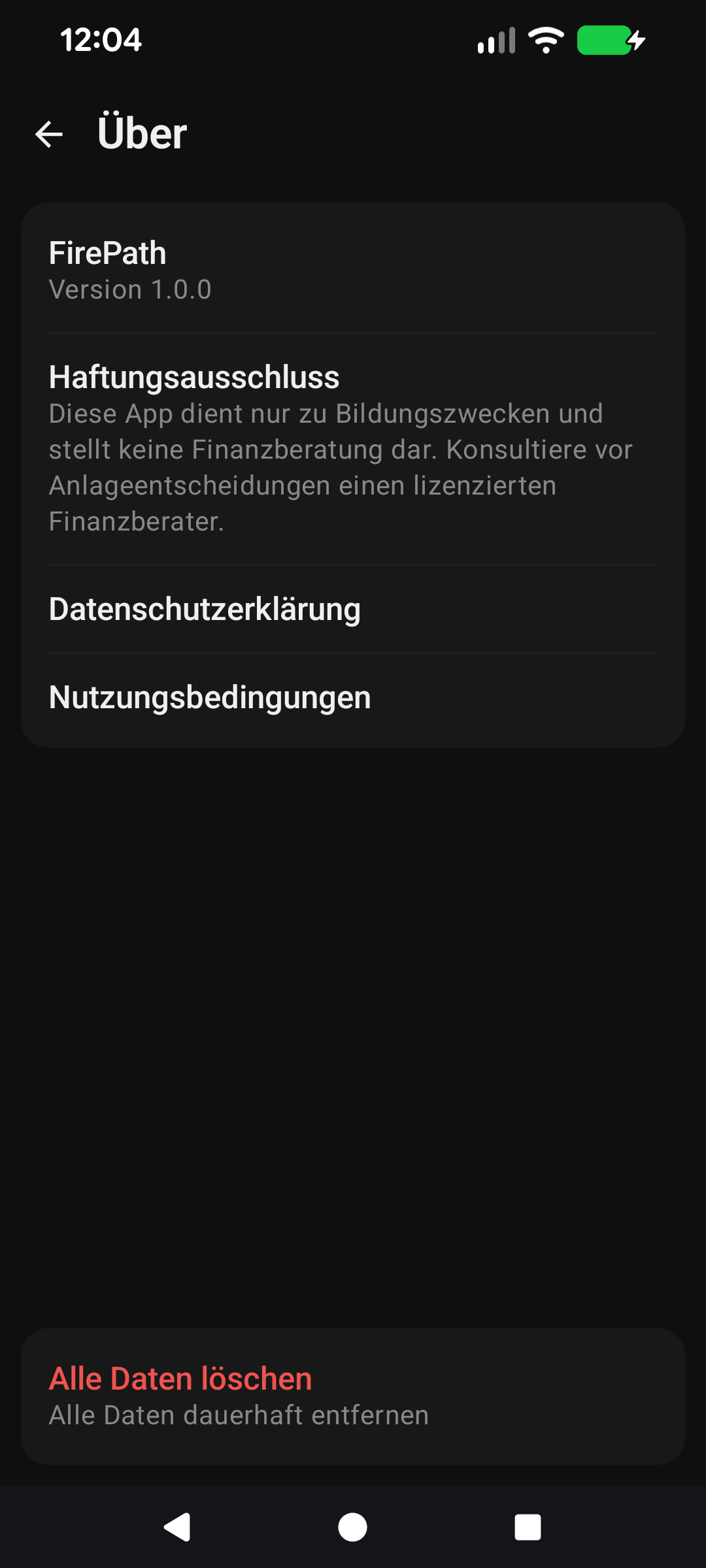
① Permanent, no-undo wipe. ② Confirm dialog prevents fat-fingering.
Settings → About → Delete all data clears every table in the local database: assets, liabilities, income, expenses, snapshots, owners, settings, everything. The app then restarts empty, as if freshly installed. This is permanent and non-recoverable — no trash, no undo — so there's a confirmation dialog.
If auto-backup is enabled and you've been backing up, the daily snapshot in Drive is not automatically deleted by this action. That's intentional: "wipe local" shouldn't accidentally destroy your off-site backup. To delete the Drive backup as well, toggle auto-backup off first, then delete the file manually from Drive → Settings → App Settings → FirePath → Delete app data.
Uninstalling
Uninstalling FirePath from Android deletes the app and all of its local data completely. If you had auto-backup enabled, the last snapshot still sits in your Drive App Data area — reinstall and sign in and it offers to restore. Don't want that? Delete the Drive file via the Drive web interface (Settings → Manage apps → FirePath → Delete hidden app data).
The one-line summary
If you forget everything else: your financial data is on your phone, optionally also in your Google Drive, and never on our servers. We see tickers and IPs, nothing else.
Wipe all data — Settings → About → Delete all data. Permanent, no undo.
Schnellstart
FirePath ist um ein Prinzip gebaut: Ihre Finanzdaten gehören Ihnen und bleiben bei Ihnen. Kein Konto erforderlich, keine Cloud benötigt, kein Dritter am Standardfluss beteiligt.
Lokal zuerst — jeder Vermögenswert, jede Verbindlichkeit, Einnahme, Ausgabe und Momentaufnahme liegt in einer Datenbank auf Ihrem Telefon. Deinstallieren Sie die App, und die Daten sind weg. Installieren Sie auf einem neuen Telefon, und sie beginnt leer.
Kein Konto erforderlich — Sie erstellen nie ein FirePath-Konto, geben uns nie eine E-Mail, melden sich nie an. Die App läuft einfach.
Optionale Google Drive-Sicherung (Premium) — wenn Sie eine Off-Device-Sicherung möchten, schreibt FirePath tägliche verschlüsselte Momentaufnahmen in Ihr Drive. Die Datei gehört Ihnen.
Biometrische Sperre — Fingerabdruck- oder Gesichtsentsperrung mit automatischer Wiedersperrung nach 5 Minuten Inaktivität.
Serverseitig — wir betreiben einen winzigen Pricing-Server, der Ticker-Kurse zwischenspeichert, damit die App nicht den vorgelagerten Kursanbieter direkt anspricht. Null Nutzeridentität, null Finanzdaten auf unseren Servern.
Der Rest dieser Anleitung ist für Nutzer, die den Bildschirm anpassen möchten. Wenn Sie mit den Standardeinstellungen zufrieden sind, können Sie hier aufhören — alles unten ist optionale Anpassung.
Tiefer eintauchen
Was auf Ihrem Gerät ist
Alles, was Sie in FirePath eingeben, liegt auf Ihrem Telefon, im privaten Datenbereich der App. Android erzwingt, dass keine andere App diesen Ordner lesen kann — keine Antivirus-Apps, keine Dateimanager, nichts. Das Deinstallieren von FirePath löscht den Ordner und die Datenbank damit.
Moderne Android-Telefone verschlüsseln standardmäßig alle App-Daten auf dem Gerät, sodass Ihre FirePath-Daten auf dieselbe Weise geschützt sind wie Ihre Fotos und Nachrichten.
Was in Ihrem Google Drive ist (Premium, opt-in)
① Drive → Einstellungen → Apps verwalten. ② Versteckte Sicherungsdatei, nur FirePath kann lesen.
Wenn Sie die Auto-Sicherung aktivieren, schreibt FirePath eine tägliche Momentaufnahme Ihrer Datenbank in einen versteckten Ordner in Ihrem Google Drive namens App-Daten. Dies ist ein sandboxed Bereich, der in Ihrer normalen Drive-Ansicht unsichtbar ist — nur FirePath kann dort lesen oder schreiben.
Die Momentaufnahme-Datei ist mit einem Schlüssel verschlüsselt, der von Ihrem Google-Konto abgeleitet ist. Selbst wenn jemand Zugriff auf die rohe Drive-Datei erhielte, könnte er sie ohne Ihre Google-Anmeldedaten nicht entschlüsseln. FirePath hat keinen "Hauptschlüssel", der irgendjemandes Sicherung entsperren könnte.
Woohoo Software kann Ihre Sicherung nicht lesen. Wir halten nicht den Entschlüsselungsschlüssel, wir können ihn nicht von Google anfordern, und wir haben keine andere Möglichkeit, auf Ihr Drive-Konto zuzugreifen. Die Sicherung gehört wirklich Ihnen.
Was auf unserem Server ist
FirePath betreibt einen kleinen Server. Hier ist die vollständige Liste dessen, was er speichert:
Ticker-Kurse — der letzte Kurs für jeden Ticker, den irgendein Nutzer nachgeschlagen hat. Reine öffentliche Marktdaten, zwischengespeichert, damit Ihr Telefon nicht den vorgelagerten Kursanbieter direkt anspricht.
Welche Ticker heute angefragt wurden — hilft dem Server zu wissen, welche Kurse als Nächstes aktualisiert werden sollen. Keine Nutzerkennungen dabei.
Was er nie sieht: Ihren Namen, E-Mail, Bestände, Mengen, Salden, Nettovermögen, Eigentümer oder Sicherungsdaten. Es gibt kein FirePath-Konto zum Anmelden — weil es nichts zum Anmelden gibt. Die App fragt nach dem Kurs eines Tickers und bekommt eine Zahl zurück. Das ist das gesamte Gespräch.
Biometrische App-Sperre
① Biometrische-Sperre-Umschalter oben in den Einstellungen. ② Wenn an, gated Androids Fingerabdruck-/Gesichtsentsperrung die App beim Start und nach 5 Minuten im Hintergrund.
Einstellungen → Sicherheit → Biometrische Entsperrung erforderlich. Wenn aktiviert, zeigt das Öffnen der App eine Fingerabdruck-/Gesichtsabfrage vor allem anderen. Android selbst übernimmt die biometrische Prüfung — FirePath sieht nie Ihren Fingerabdruck oder einen Fingerabdruck-Hash, nur ein Bestanden/Nicht-Bestanden vom Betriebssystem.
Automatische Wiedersperrung nach 5 Minuten. Wenn Sie die App in den Hintergrund schicken und mehr als 5 Minuten später zurückkommen, müssen Sie erneut entsperren. Innerhalb von 5 Minuten sind Sie bereits entsperrt — das Antippen einer Benachrichtigung oder kurzes App-Wechseln erzwingt keine erneute Abfrage. Diese Schwelle ist fest, nicht konfigurierbar; sie ist so gewählt, dass normales App-Wechseln nicht nervt, aber kurz genug, dass ein verlorenes Telefon nicht den ganzen Tag entsperrt bleibt.
Fallback: Wenn Biometrie fehlschlägt (nasse Finger, Gesichtsmaske, falscher Finger), fällt Android auf Ihre Geräte-PIN/Ihr Muster zurück. FirePath hat keine eigene separate PIN — sich auf Androids zu verlassen bedeutet, dass Sie das Sperrverhalten des Telefons bekommen (5 fehlgeschlagene Versuche = Telefon sperrt), ohne dass wir es schlecht neu implementieren.
Alle Daten löschen
① Permanentes, nicht rückgängig machbares Löschen. ② Bestätigungsdialog verhindert Fehlklicks.
Einstellungen → Info → Alle Daten löschen leert jede Tabelle in der lokalen Datenbank: Vermögenswerte, Verbindlichkeiten, Einnahmen, Ausgaben, Momentaufnahmen, Eigentümer, Einstellungen, alles. Die App startet dann leer neu, als wäre sie frisch installiert. Dies ist permanent und nicht wiederherstellbar — kein Papierkorb, kein Rückgängig —, deshalb gibt es einen Bestätigungsdialog.
Wenn Auto-Sicherung aktiviert ist und Sie gesichert haben, wird die tägliche Momentaufnahme in Drive nicht automatisch durch diese Aktion gelöscht. Das ist beabsichtigt: "Lokal löschen" sollte Ihre Off-Site-Sicherung nicht versehentlich zerstören. Um die Drive-Sicherung ebenfalls zu löschen, schalten Sie zuerst Auto-Sicherung aus und löschen Sie dann die Datei manuell unter Drive → Einstellungen → App-Einstellungen → FirePath → App-Daten löschen.
Deinstallation
Das Deinstallieren von FirePath von Android löscht die App und alle ihre lokalen Daten vollständig. Wenn Sie Auto-Sicherung aktiviert hatten, bleibt die letzte Momentaufnahme noch im App-Daten-Bereich Ihres Drive — neu installieren und anmelden, und sie bietet die Wiederherstellung an. Wollen Sie das nicht? Löschen Sie die Drive-Datei über die Drive-Weboberfläche (Einstellungen → Apps verwalten → FirePath → Versteckte App-Daten löschen).
Die Ein-Satz-Zusammenfassung
Wenn Sie alles andere vergessen: Ihre Finanzdaten sind auf Ihrem Telefon, optional auch in Ihrem Google Drive und nie auf unseren Servern. Wir sehen Ticker und IPs, sonst nichts.
Machen Sie es zu Ihrem — Einstellungen, die diesen Bildschirm beeinflussen