Your wallet
Quick start
Every card you add lands here, grouped into sections: Favourites first, then one section for each card type. Each tile shows the card's type, its name, and its store; a gift card shows what is left on it instead.
Tap a card to open it. Press and hold a card for Open Card and Open to Scan. The top bar has Edit, the gear for Settings and + to add a card, and Search cards sits at the bottom of the screen.
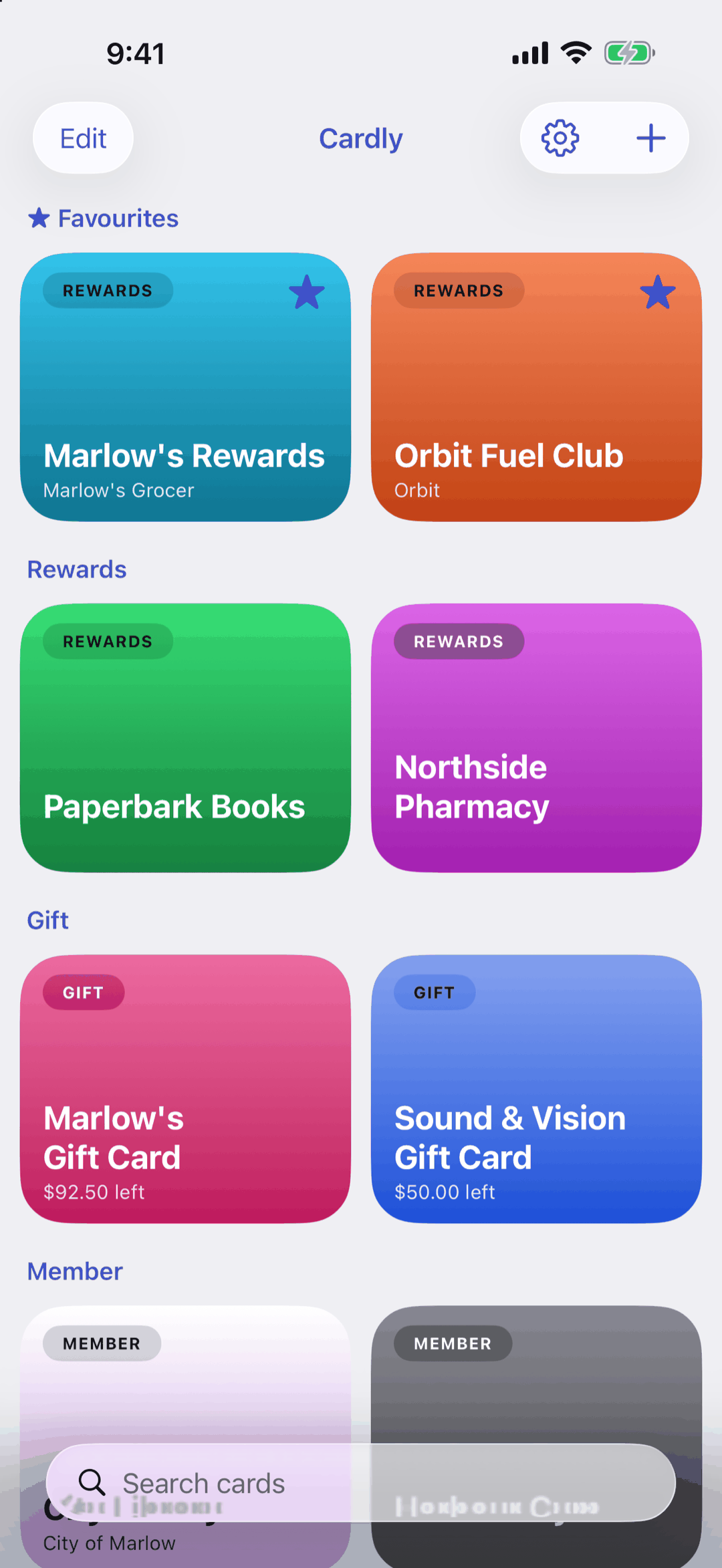
Below: Edit, the wallet views, and what free users see.
Going deeper
Edit
Tap Edit and the wallet changes for tidying. Tap the eye on a card to hide it (hidden cards stay in Edit, faded), drag a card to move it within its section, and turn Group into Sections off to show the cards in one run. Tap Done when you have finished. In Edit, a tap on a card never opens it.
Wallet views
The Wallet View picker at the top of Edit switches between Tiles, List, Grid, Stack and Full. Tiles is free; the other four come with Premium. Free users can tap one to try it with their own cards, and Done goes back to Tiles.
Opening straight to the barcode
A tap opens the card screen. If you would rather go straight to Scan Mode, turn on Settings › Wallet Screen › Open Scan Mode on Tap.
Free version
The wallet shows a More Apps tile for other Woohoo Software apps, an Add Another Gift Card tile at the end of the gift cards, and a crown in the top bar that opens Premium.
Questions or feedback? Email us at woohoosoftware@gmail.com