The card screen
Quick start
The card's name is the title. Under it is the card itself: the barcode, then each picture, then a colour tile, and you swipe between them; the dots show where you are. Next comes the Card Number with a copy button; a gift card shows its PIN and Balance too.
Then the rows: Details, Pictures, the linked cards, Notes and Delete Card, with Open to Scan at the foot.
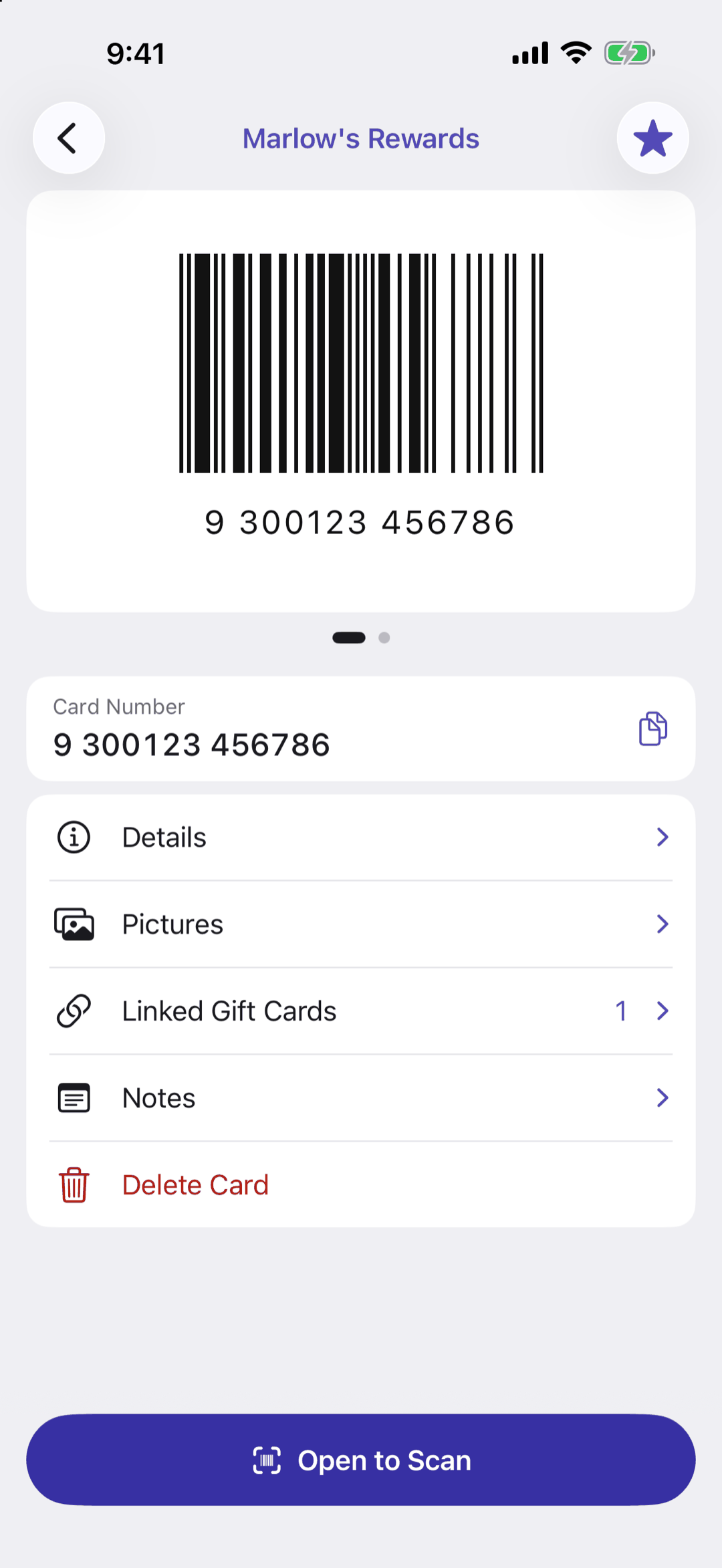
Below: folding the pictures away, the colour tile, and the rows.
Going deeper
Folded away
Tap the barcode or a picture and the top folds down to a Show Pictures strip in the card's colour, bringing the rows up the screen; tap the strip to open it again. Rewards cards start open and gift cards start folded, which you can change under Settings › Card Screen. Card Screen Opens on Barcode chooses whether the card opens on the barcode or on its first picture.
The colour tile
Tap the tile to change the card's colour. Add Pictures on the tile opens the card's pictures.
The rows
- Details shows everything the card holds; the pencil opens it for editing. Changing a card to or from Gift removes its links
- Linked Gift Cards or Linked rewards cards lists the cards that open with this one in Scan Mode
- Notes (Premium) keeps anything else about the card; press and hold the row to read it
- Delete Card removes the card and its PIN for good. A gift card with money left offers Hide Instead
The star in the top bar makes the card a favourite.
Questions or feedback? Email us at woohoosoftware@gmail.com