Gift cards
Quick start
A gift card shows its PIN, hidden until you tap the eye, and its Balance, with the starting balance and expiry date underneath. After you spend, tap Update and type the New Balance or the Amount Spent; Cardly works out the other.
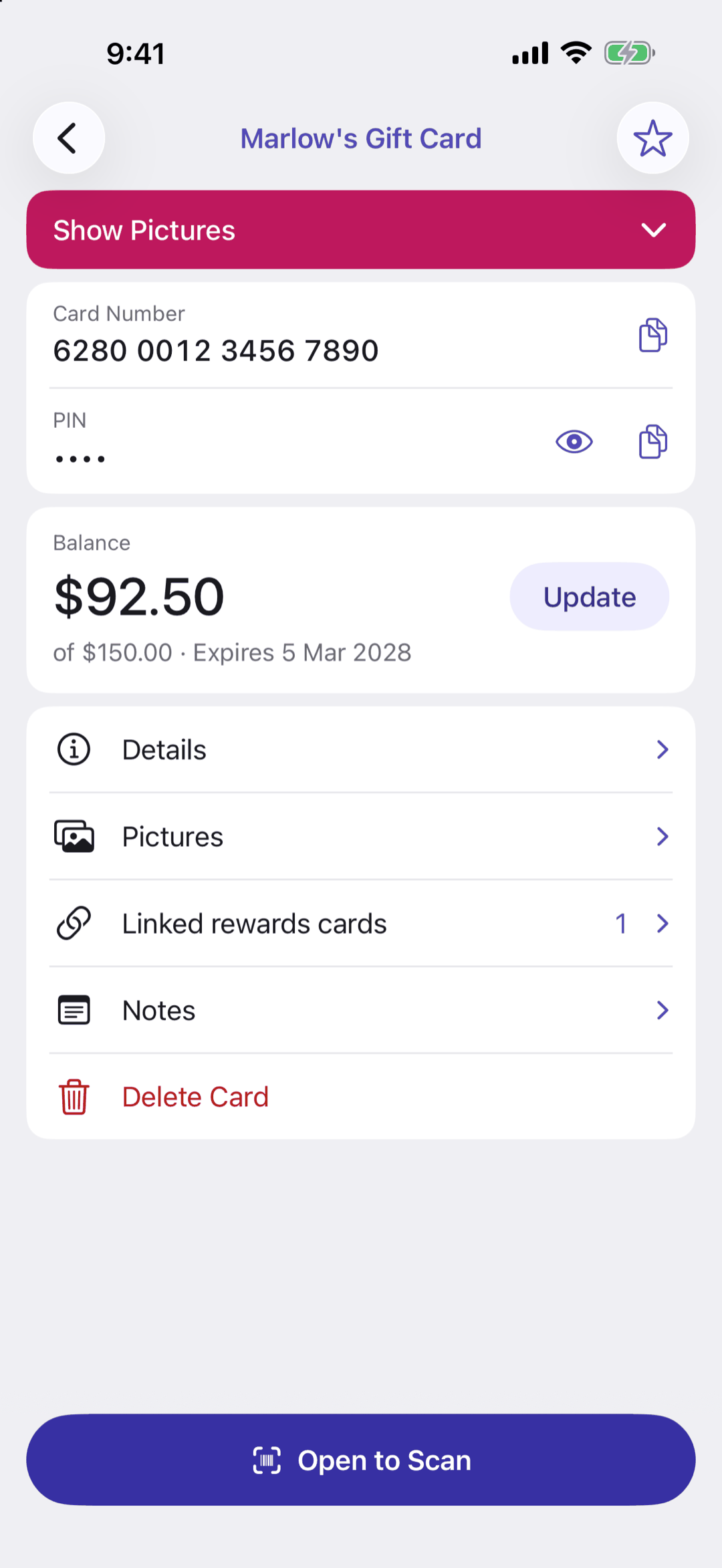
Below: linking, spent cards, expiry reminders, and the free limit.
Going deeper
Linking
Tap Linked rewards cards, then Link a Rewards Card, to pair the gift card with the rewards card you use at the same shop. They open together in Scan Mode, so you scan for points and pay in one go. A gift card can be linked to several rewards cards. Unlink with the minus button.
Spent cards
With Settings › Wallet Screen › Hide Spent Gift Cards on, a gift card is hidden once it reaches zero, and comes back if you top it up. Deleting a card with money left on it offers Hide Instead.
Expiry reminders
With Premium, turn on Settings › Expiry Reminders › Remind Me Before Gift Cards Expire. Cardly sends a notification 30, 7 and 1 day before the expiry date, at 9:00 am, saying how much is left to spend; tap it to open the card. Change the days under Reminder Days and the time under Reminder Time. The expiry date is kept with the balance, so a card needs its Current Balance entered.
Free version
One gift card, with its balance, is free. Premium adds as many as you like.
Questions or feedback? Email us at woohoosoftware@gmail.com