Scan Mode
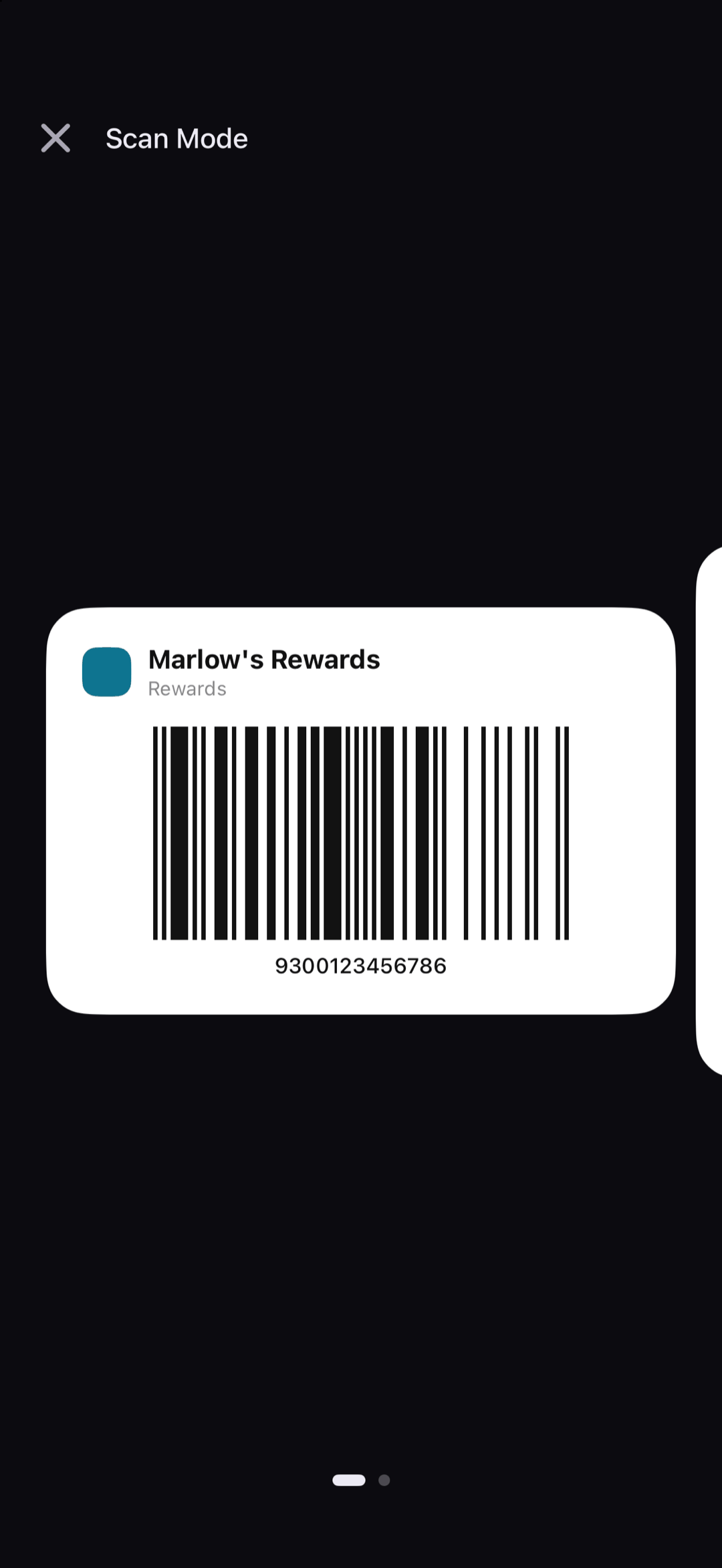
The barcode, big and bright for the scanner, with linked cards a swipe away.
Quick start
Tap Open to Scan on a card. The barcode shows on a white card against a dark screen, the brightness goes to full, and the screen stays on. Close it with the X and your brightness goes back to how it was.
Below: which cards come with it, and gift card pages.
Going deeper
Which cards appear
- From a rewards card: that card, then the gift cards linked to it
- From a gift card: the rewards cards it is linked to, each with its gift cards, starting on the gift card you opened
- From a widget with no card, a quick action or Siri's Scan my Cardly favourites: all your favourites
Gift cards that are spent or hidden are left out, unless it is the one you opened.
Gift card pages
A gift card's page shows its PIN, with a magnifier to show it full-screen, and its Balance, with Update Balance to change it on the spot.
Other ways in
Press and hold a card in the wallet and choose Open to Scan, tap a widget or a Control Center control, or press and hold Cardly's icon for your top favourites.
Questions or feedback? Email us at woohoosoftware@gmail.com